
AI StudioUpdate
Choose your own canvas background
Until now, the canvas was always black. Now you can pick its colour yourself, in both the template editor and the video editor.
How it works
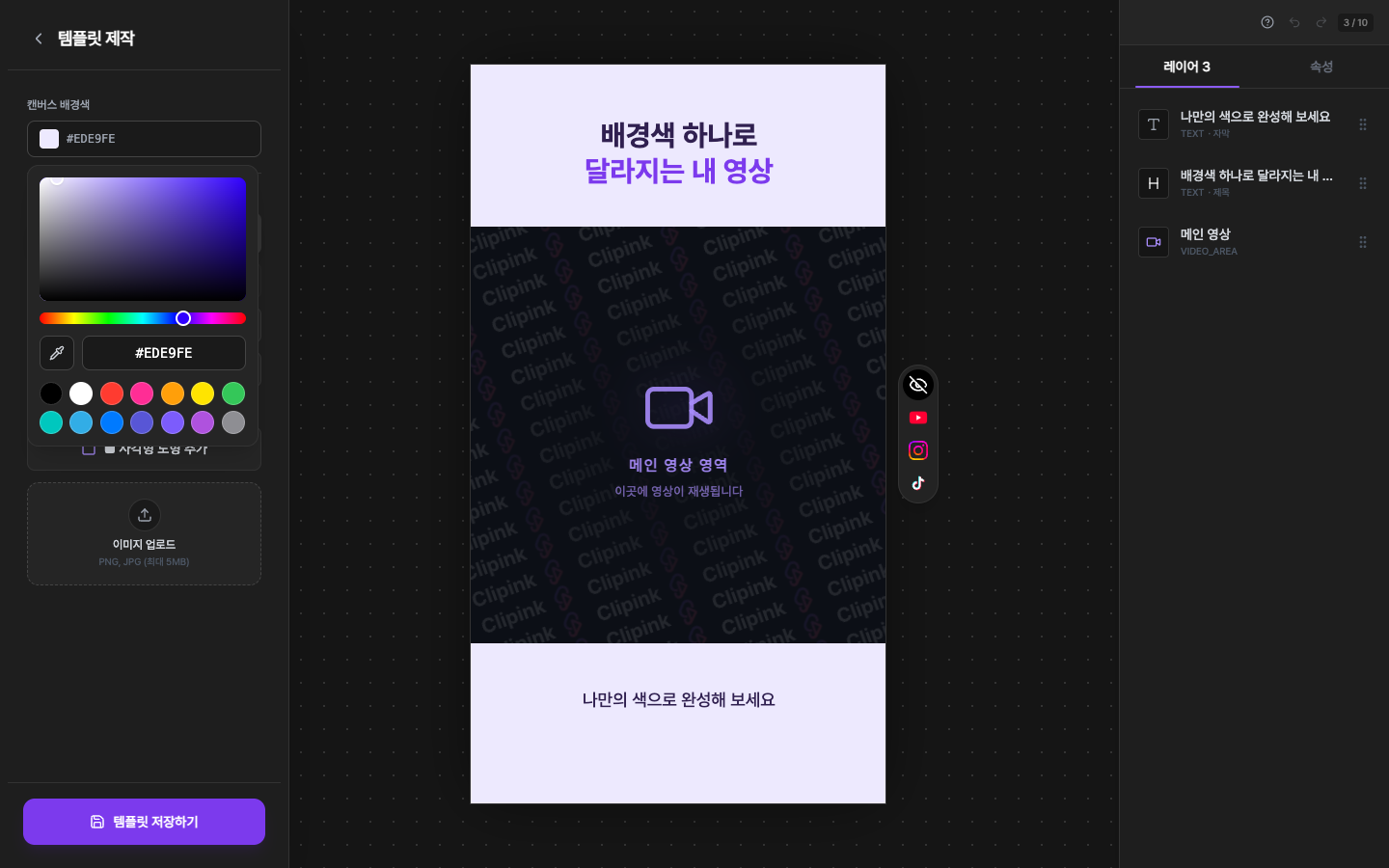
- 1In the template editorWhen building your own template, pick a colour under 'Canvas background' at the top of the left panel. It's saved with the template, so every video that uses it starts with the same background.
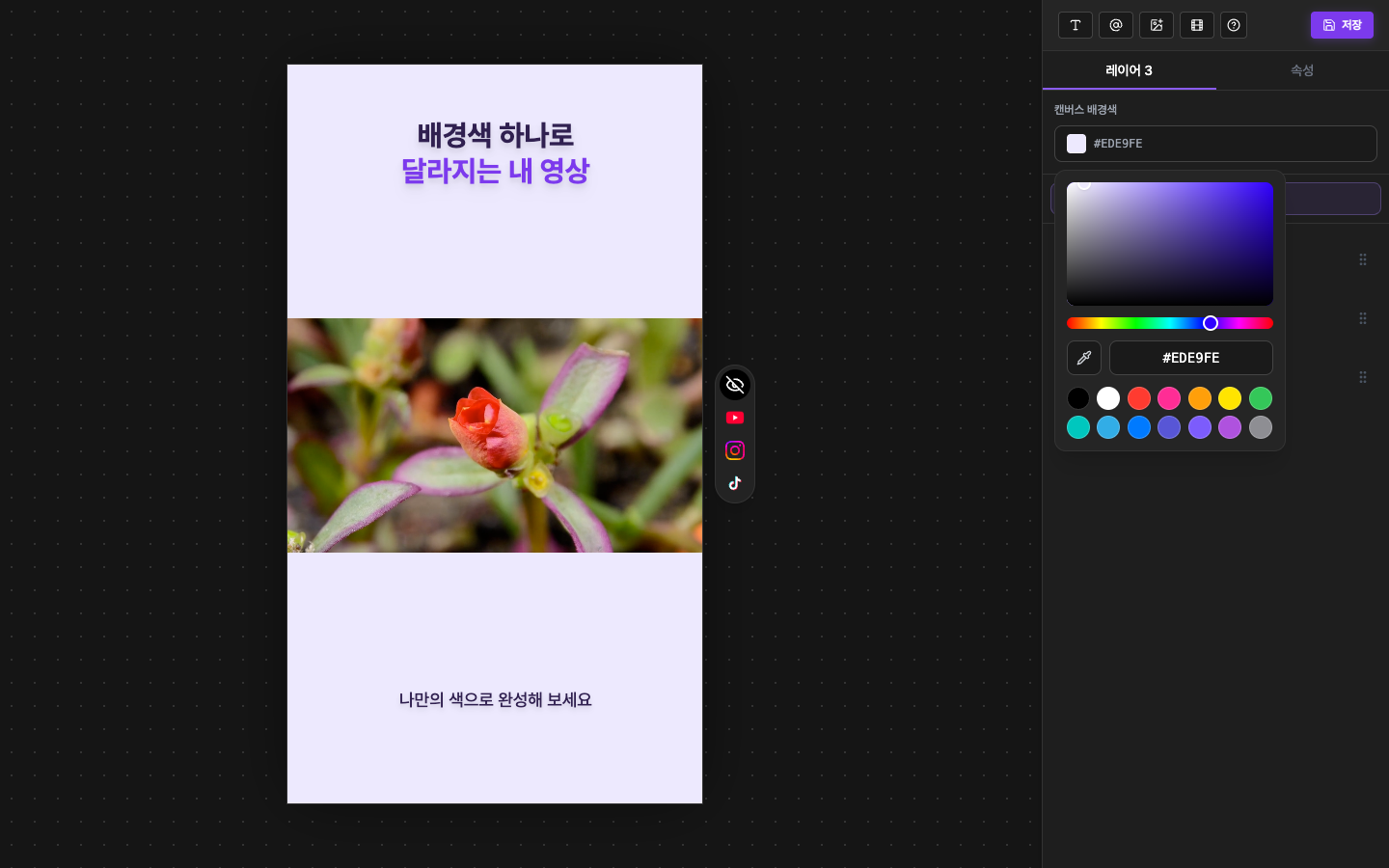
- 2In the video editorUse 'Canvas background' at the top of the right panel to change the background for just this video.
- 3Switching templatesIf you switch templates while editing, the background changes to the colour saved in the new template.
- 4Finished video and previewsThe background you see in the editor fills the finished video too. Template previews in the template picker show the background as well, so you can check it before choosing.
- 5Black by defaultIf you don't pick a colour, the background is black. Pick a colour only when you want to change it.