

AI StudioUpdate
Pick any colour without leaving the editor
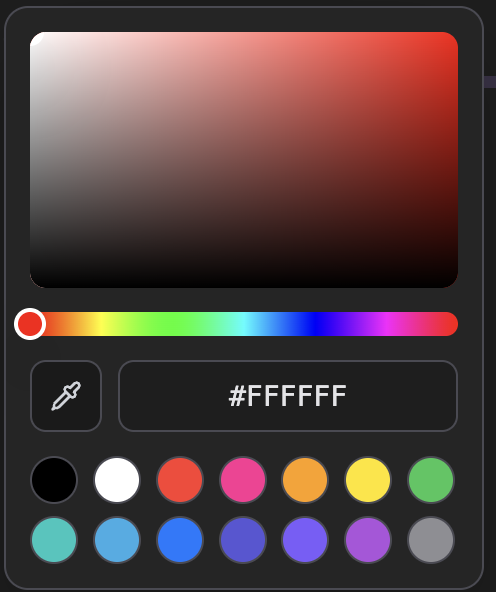
Until now, tapping a colour opened your browser's own system dialog. Now it opens right inside the editor, with common colours and a hex field on the same panel.
How to pick
- 1The square and the sliderPick a hue on the rainbow bar, then set how strong and how bright it is in the square above. To the right is more saturated, upward is brighter. Drag and the colour updates as you go.
- 2Common coloursThe fourteen circles below apply with a single tap. They cover neutrals and the basic colours, so use them when you just need something quickly.
- 3Type a colour codeIf your brand colour is fixed, paste its code into the field. Six digits like #FFE400 work, so does the three-digit short form #FFE, and you can leave off the # entirely.
- 4Lift a colour off the screenTap the eyedropper to grab a colour from anywhere on screen — handy when you want subtitles in a colour taken straight from the footage. Some browsers don't support it; there the button simply doesn't appear.
- 5Where you'll find itText colour, the title's second line, outline colour and shape colour all open the same picker, and so does the template editor where you build My templates. In the video editor you can undo a colour change like any other edit.