

AI StudioUpdate
Preview YouTube, Instagram and TikTok layouts in the editor
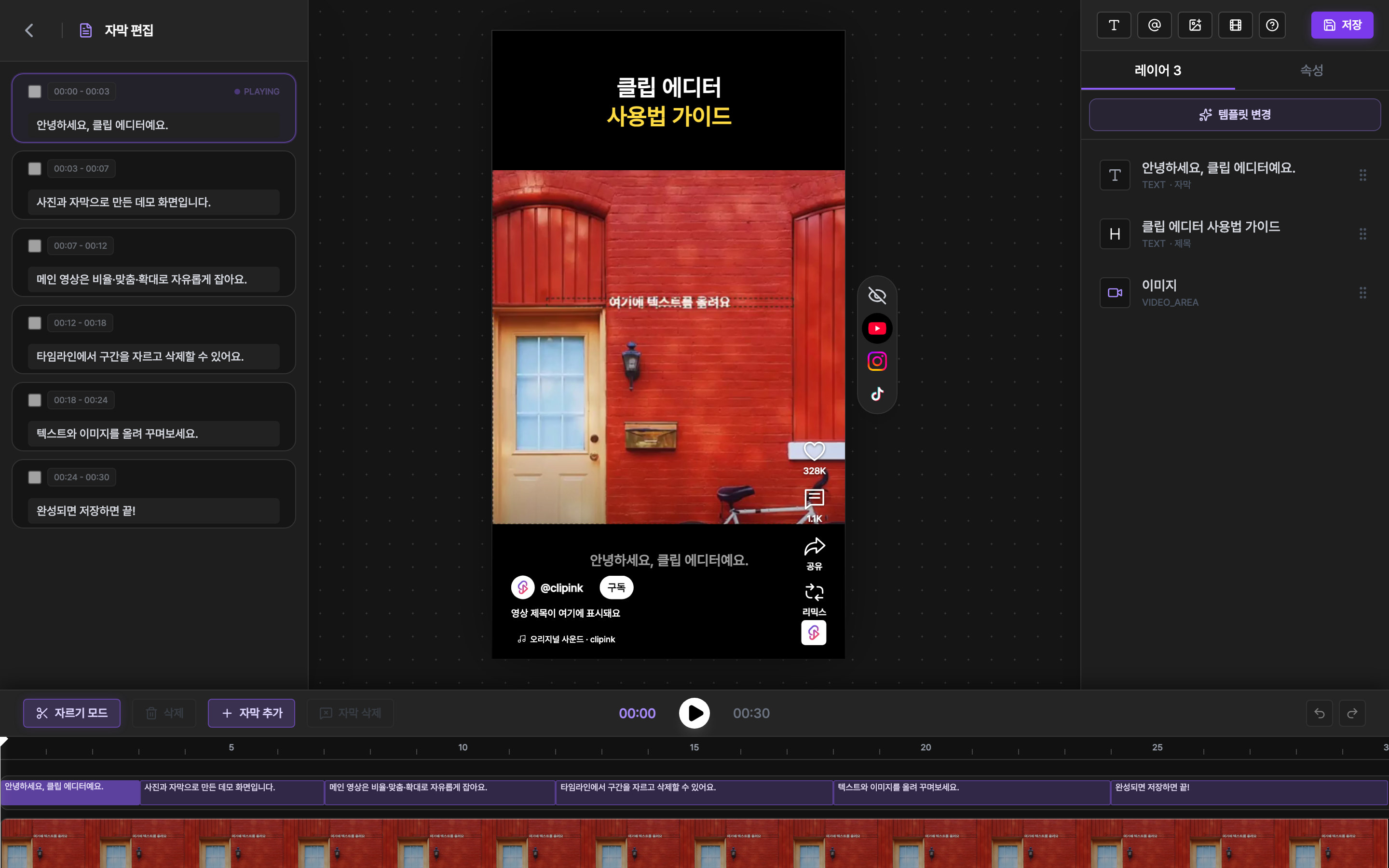
Short-form apps draw their buttons down the right side and the channel name and caption along the bottom, right over your video. Now you can overlay that UI in the editor and place your text where it won't be covered.
How it works
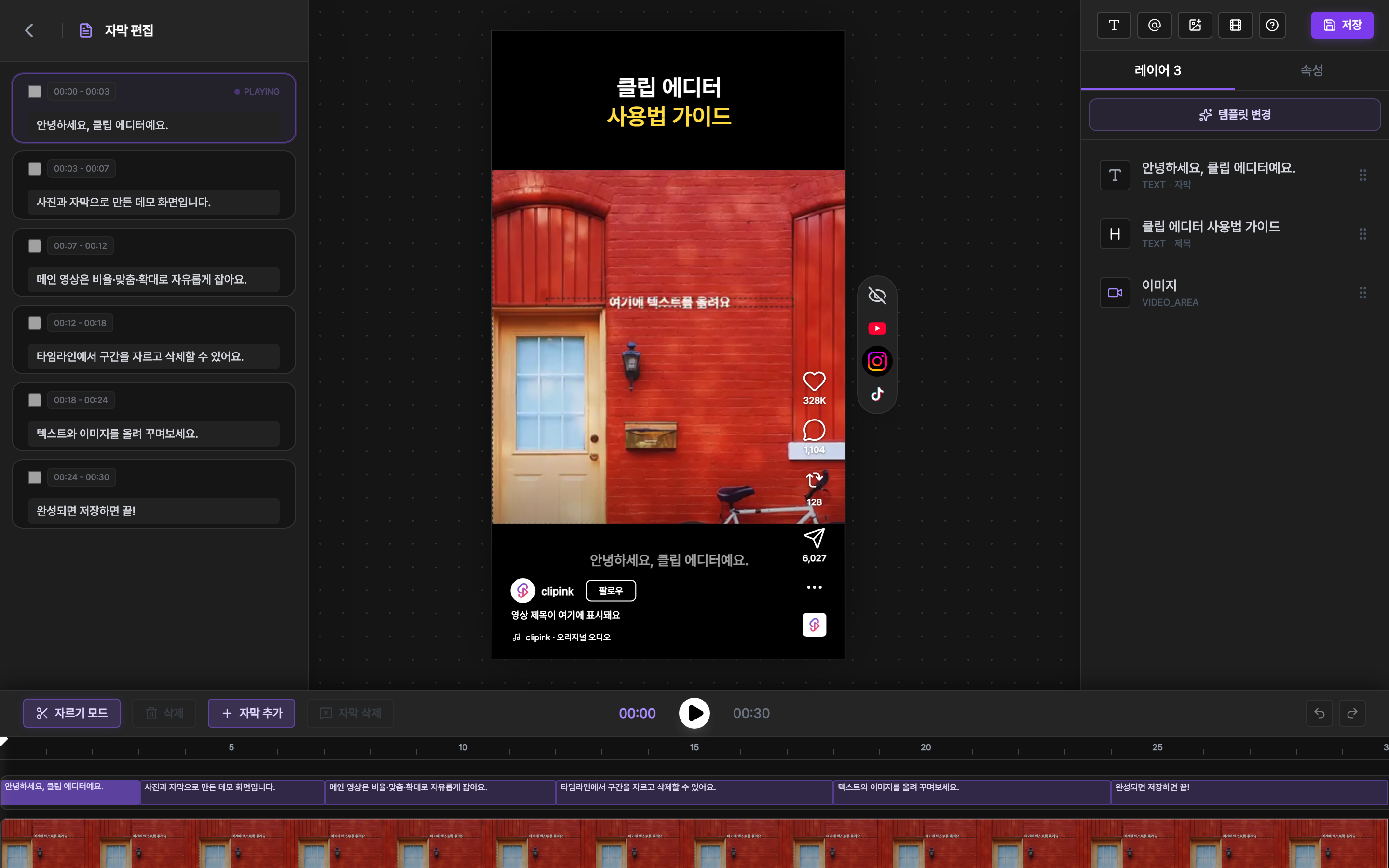
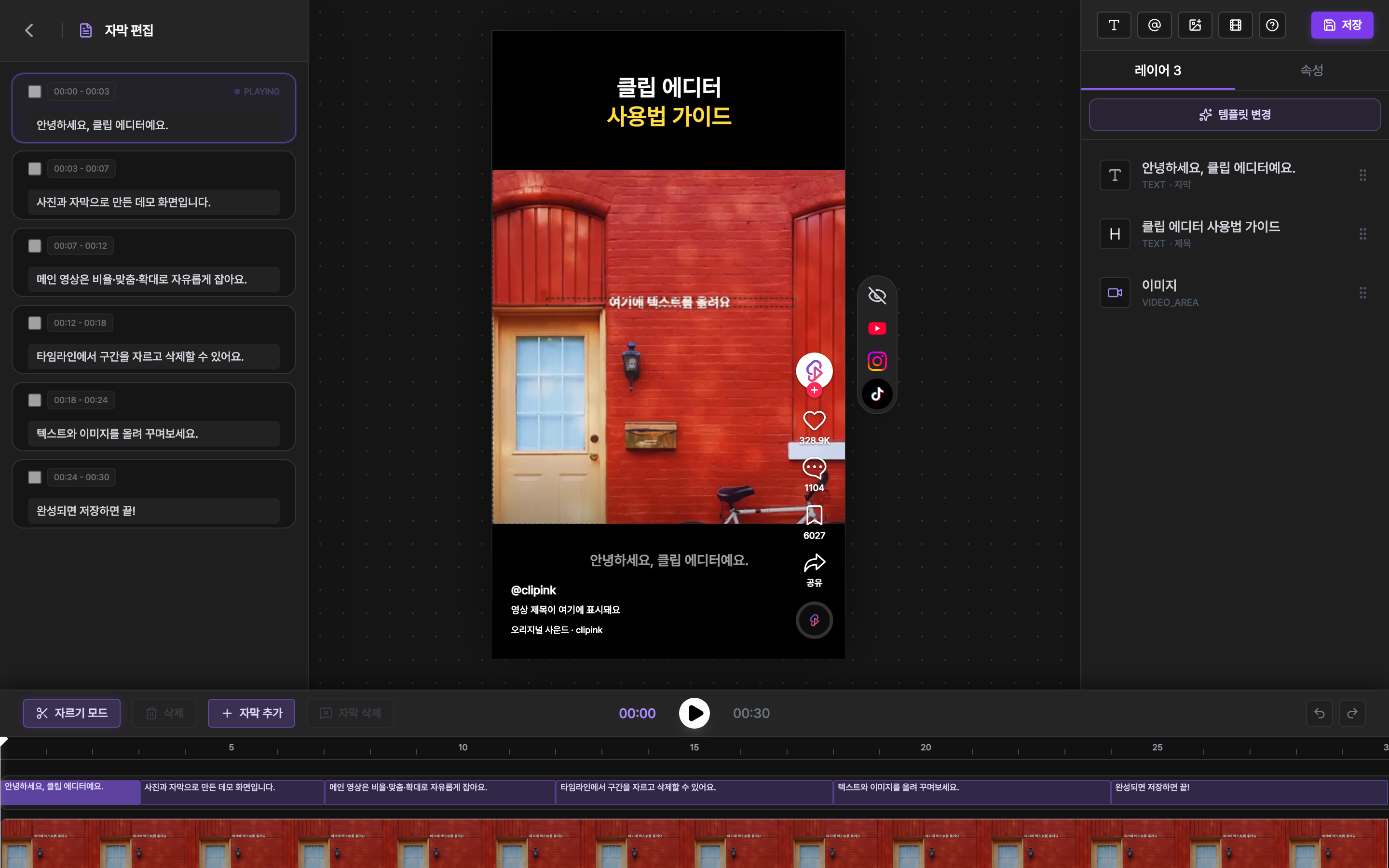
- 1Pick a platformTap YouTube, Instagram or TikTok on the toggle beside the canvas and that app's layout appears over your clip. On mobile the toggle sits in the top header. Tap 'Off' to hide it.
- 2What you seeThe like, comment and share buttons down the right, the channel name with a subscribe or follow button, the caption and the sound bar along the bottom — all roughly where the real app puts them. For example, if subtitles sit behind the like button on the right or the caption below, move them left or up. Switch platforms to check that the same position still works.
- 3Editing works as usualThe overlay is view-only, so drag, resize and every other edit works exactly as before. It's never included when you save or export, and it turns off automatically when you leave the editor.
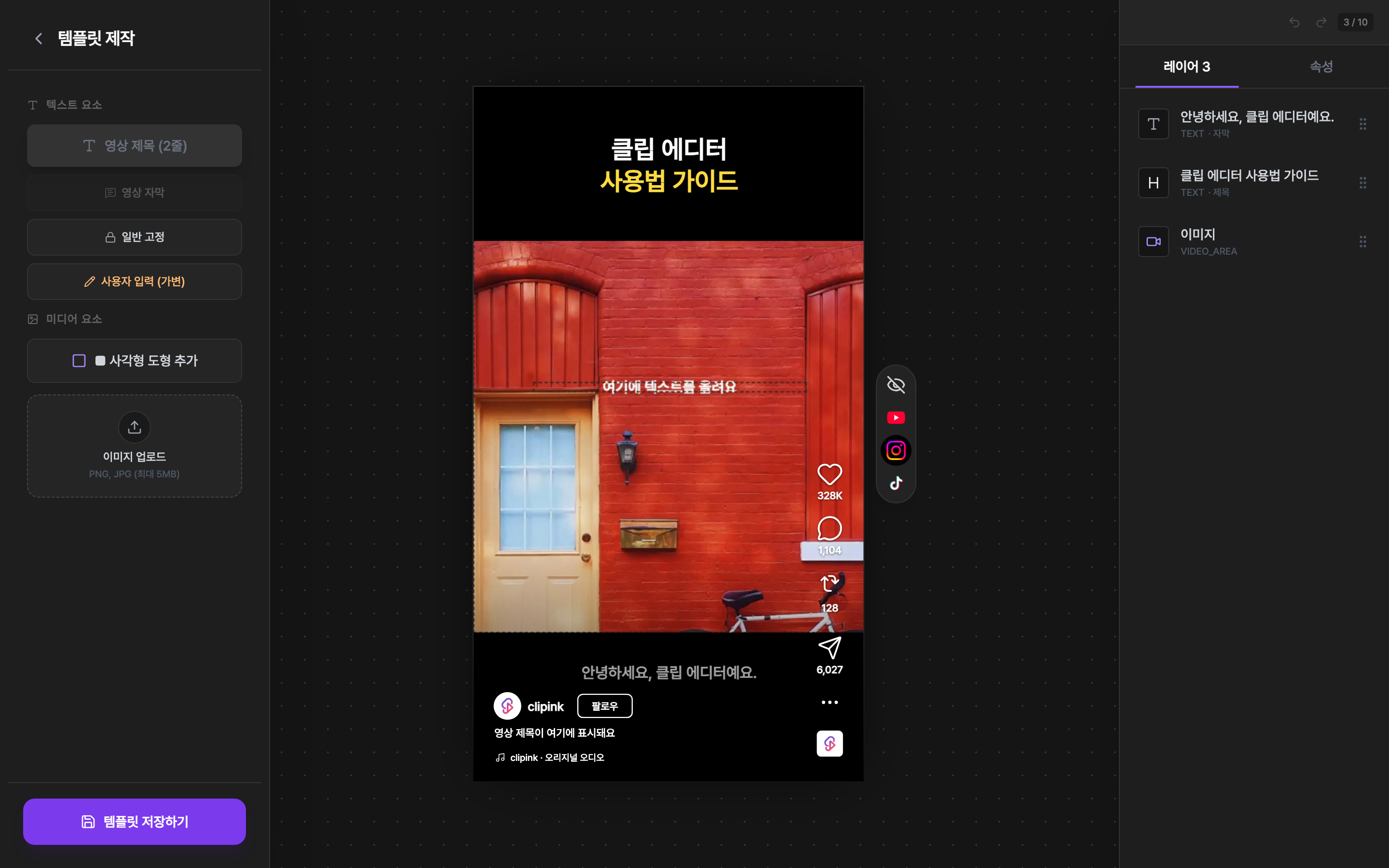
- 4In the template editor tooThe same toggle is in the template editor where you build My templates. Settle your text positions at the template stage and you'll have less to adjust on each clip.
Go to AI Studio
The overlay is a representative mobile layout; the real app may differ slightly depending on device and app version.