

CampaignsGuide
Creating a CPV campaign, start to finish
A CPV campaign pays creators based on how many views their clips get. Go to Campaigns, click New campaign and pick CPV, and the form follows the order below.
Before you start
- 1Brand workspace onlyCampaign creation lives in the brand workspace. It does not appear on the creator side.
- 2Approval and roleYour organization has to be approved, and only the organization owner can create a campaign.
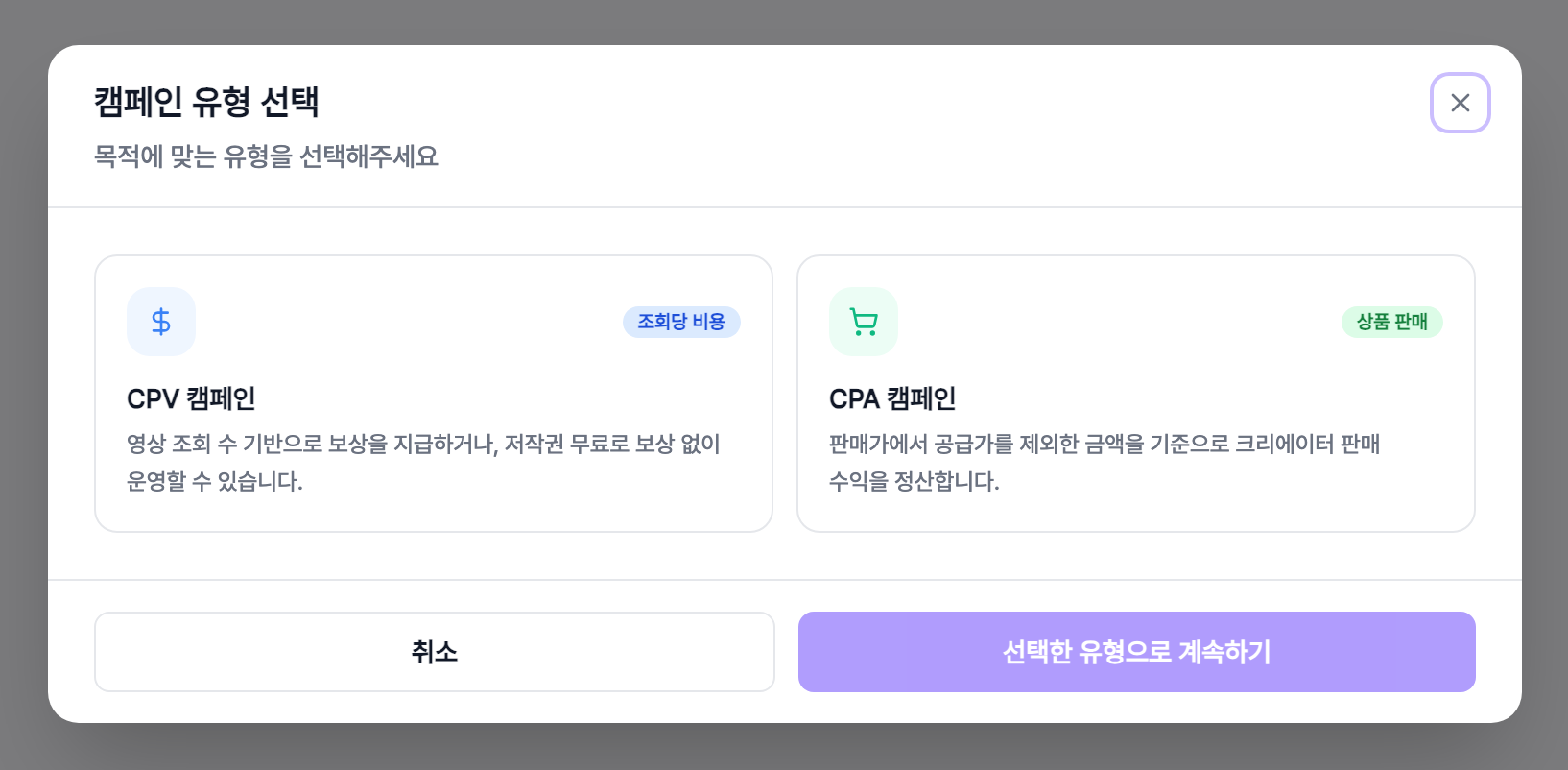
- 3Pick a type firstNew campaign opens a chooser between CPV and CPA. CPV is the cost-per-view type.
Basic information
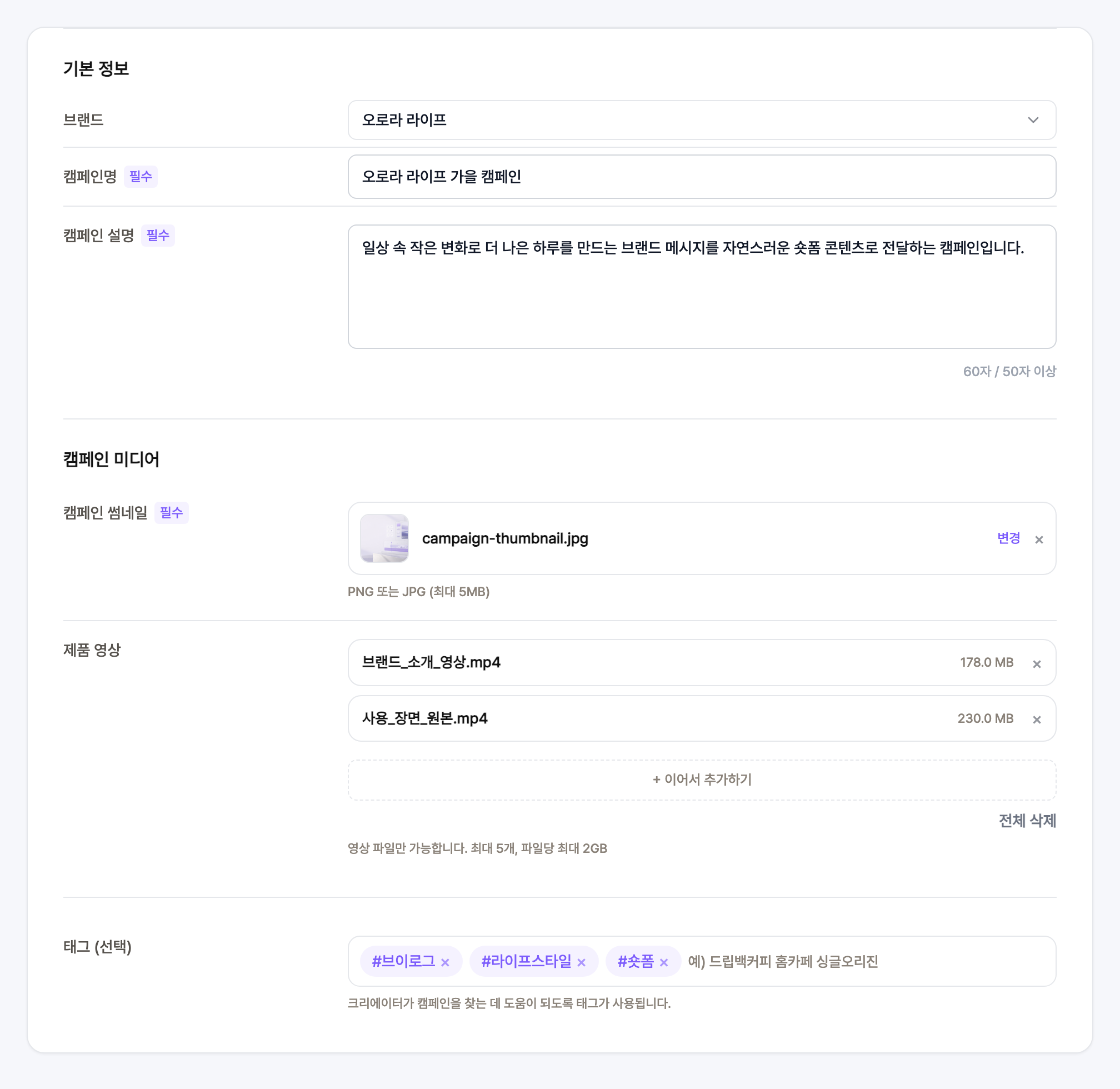
- 1BrandPick one of the brands registered under your organization. If you have none yet, leave it as None.
- 2Campaign nameThis is the name creators see on the campaign card.
- 3Campaign descriptionAt least 50 characters, otherwise you cannot request approval. Say what the campaign is about and what message the clips should carry.
Media and tags
- 1Campaign thumbnailPNG or JPG up to 5MB. Required, since it is what the campaign card shows.
- 2Product videosThe source footage creators will work from. Up to 5 files, 2GB each.
- 3TagsOptional, but they are what creators search on when looking for campaigns.
Approval method and who can join
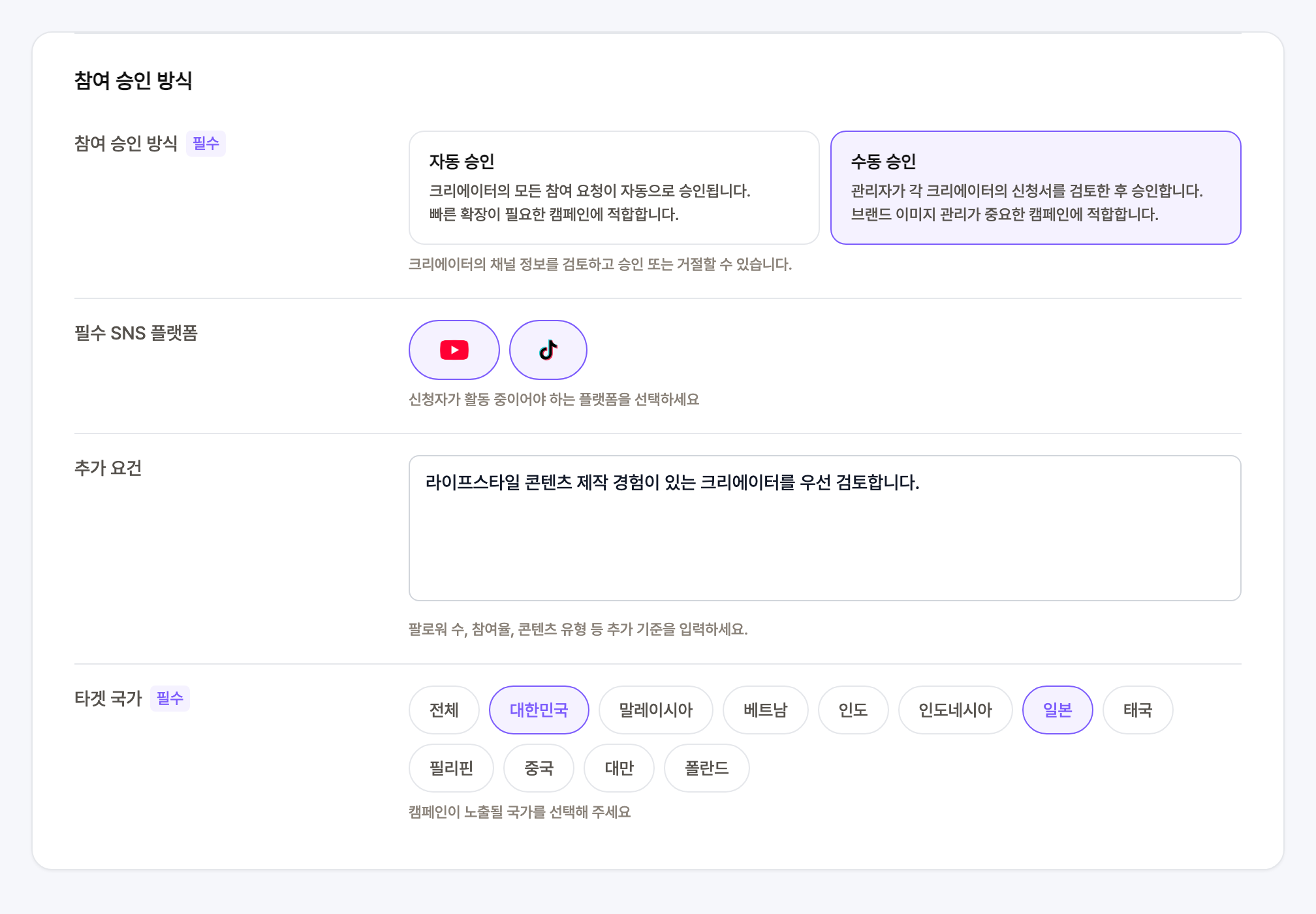
- 1Automatic approvalEvery application is approved on arrival. Good when you need to scale participation fast.
- 2Manual approvalYou review each applicant channel and approve or reject it. You can also require specific social platforms and extra conditions.
- 3Extra requirementsA free-text field for criteria the form cannot filter on, such as follower count, engagement rate or content type.
- 4Target countriesWhere the campaign is visible. Pick at least one, or hit All to select every country at once.
Template and media guide
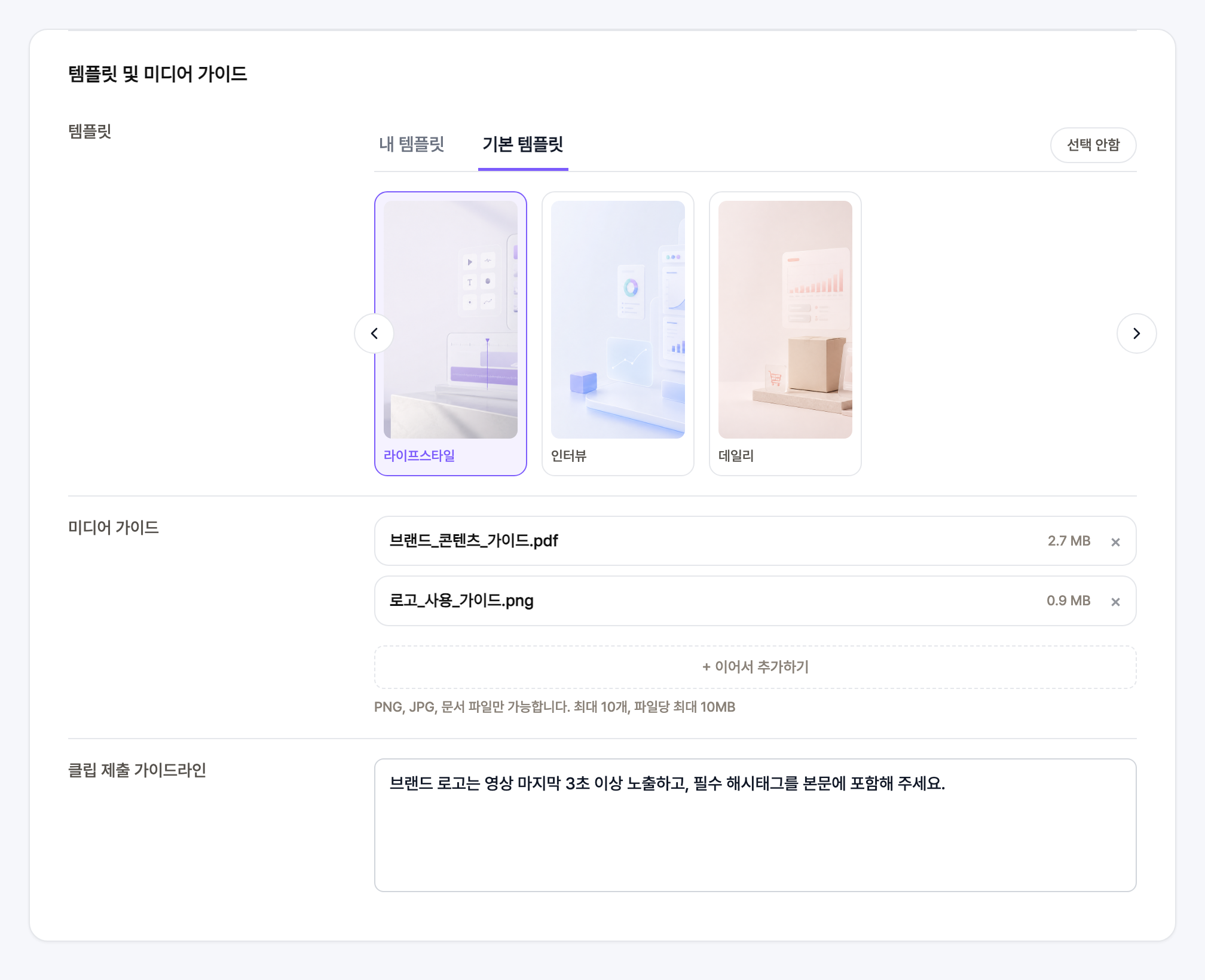
- 1Video templateChoose from your own templates or the default ones, or leave it as None. If you pick one, creators build their clips on it.
- 2Media guideWhere you upload logos, product shots and brand guideline documents. PNG, JPG and documents, up to 10 files at 10MB each.
- 3Clip submission guidelinesSpelling out the shots or lines a clip must include cuts down on rejections later.
- 4All optionalYou can leave all three empty and still request approval. The more you fill in, the closer the results land to what you had in mind.
Budget and rewards
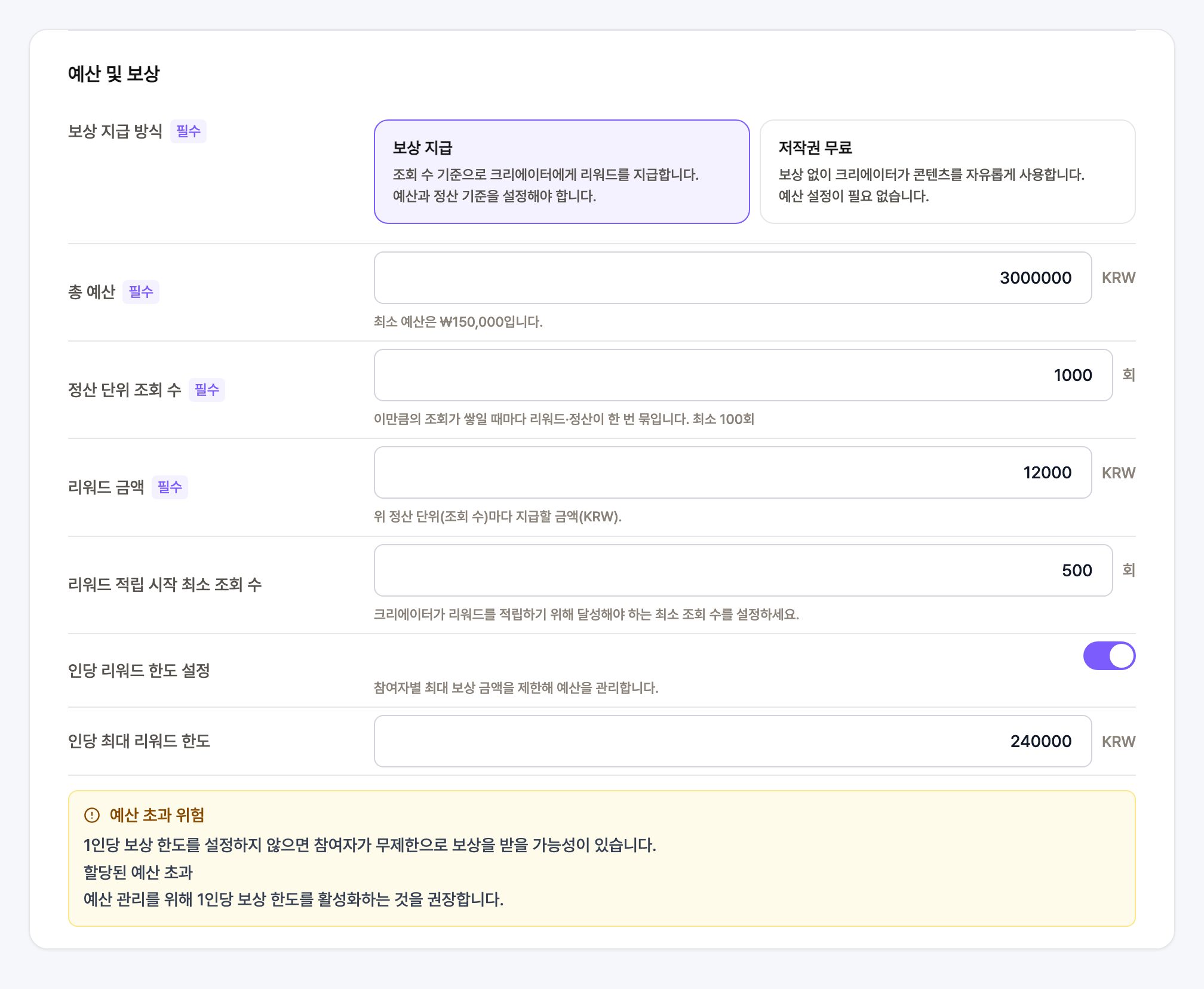
- 1Paid reward or royalty freePaid reward pays creators by views. Royalty free means no payout and creators may use the content freely. Choosing royalty free hides the budget fields below.
- 2Total budgetStarts at 150,000 KRW. All rewards are paid out of this amount.
- 3Views per settlement unitEvery time this many views accumulate, one reward is calculated. Minimum 100.
- 4Reward amountWhat you pay per settlement unit. Set 500 KRW per 1,000 views and 2,000 views earns 1,000 KRW.
- 5Minimum views to start earningA clip has to pass this view count before it starts accruing rewards.
- 6Per-person reward capCaps how much a single creator can take from the budget. We recommend turning it on.
Dates and contact
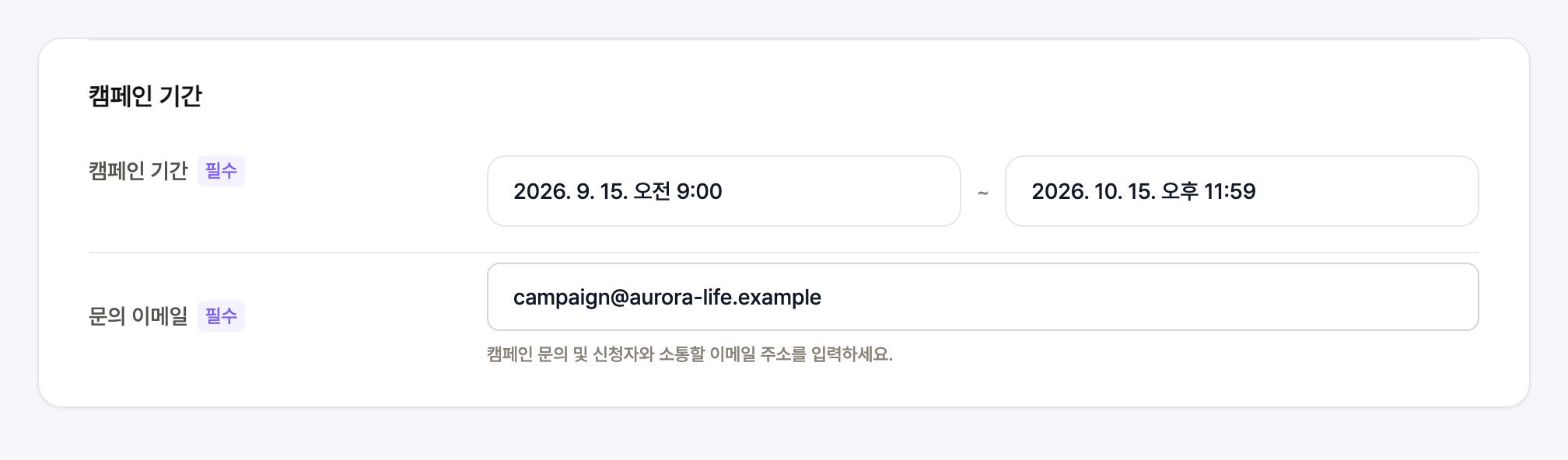
- 1Start and end dateYou cannot pick a date before today, and an end date earlier than the start date blocks approval.
- 2Contact emailWhere creators write with questions about the campaign. Required to request approval.
Saving a draft and requesting approval
- 1Save draftA campaign name is enough to save and come back later. It shows up in the list as a draft.
- 2The review dialogRequest approval opens a single screen with everything you entered. Missing required fields are flagged right there.
- 3How the budget splitsIn the review dialog the total budget appears split into 90 percent actual budget and 10 percent reserve.
- 4After approvalThe status moves from under review to pending deposit to active. Without a secured budget the campaign is not approved.