

Asset libraryUpdate
Paste a script, get a voice track
You no longer have to record narration yourself every time. Paste your script into Asset library › Voice, pick a voice, and the audio file is ready.
Just a script and a voice
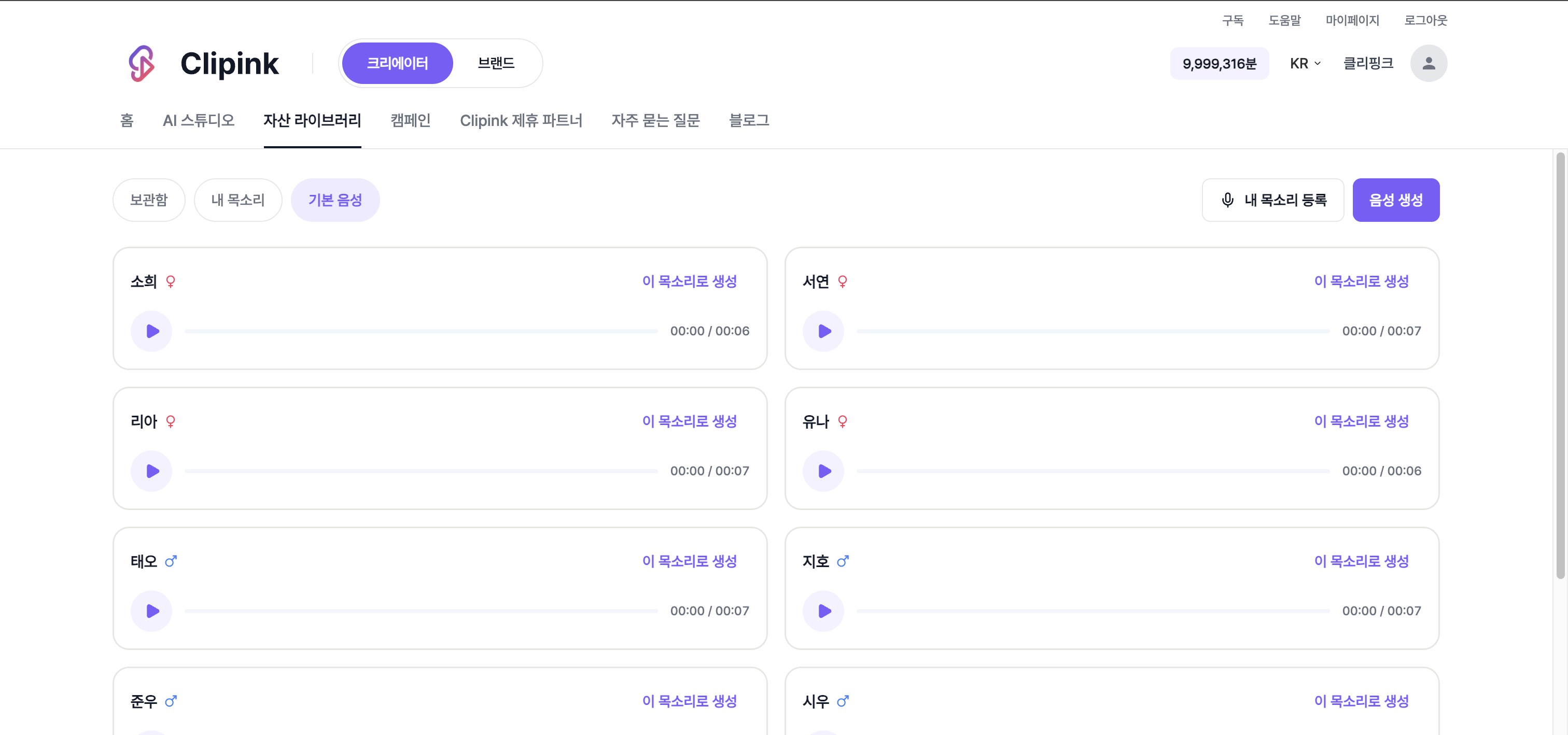
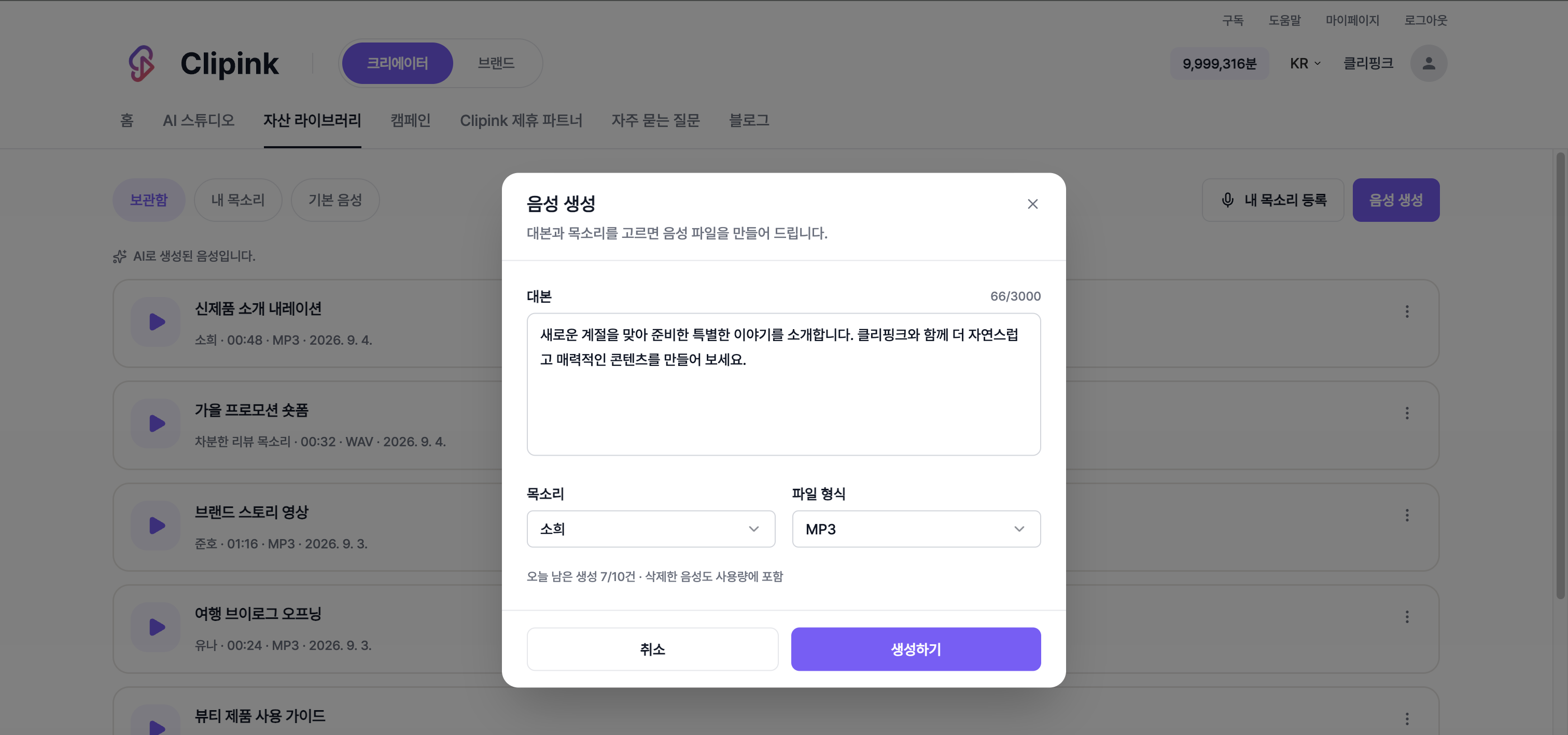
- 1Create speechTap 'Create speech' in Asset library › Voice to open the script box. You can paste up to 3,000 characters at a time.
- 2Pick a voiceChoose one of the preset voices, or one of your own. Tapping 'Use this voice' on a card opens the dialog with that voice already selected.
- 3File formatChoose MP3 or WAV. Whichever you picked last is still selected the next time you open the dialog.
- 4Today's remaining runsBelow the form you'll see how many generations you have left today. Note that deleted audio still counts toward that number.
Read three sentences to add your own voice
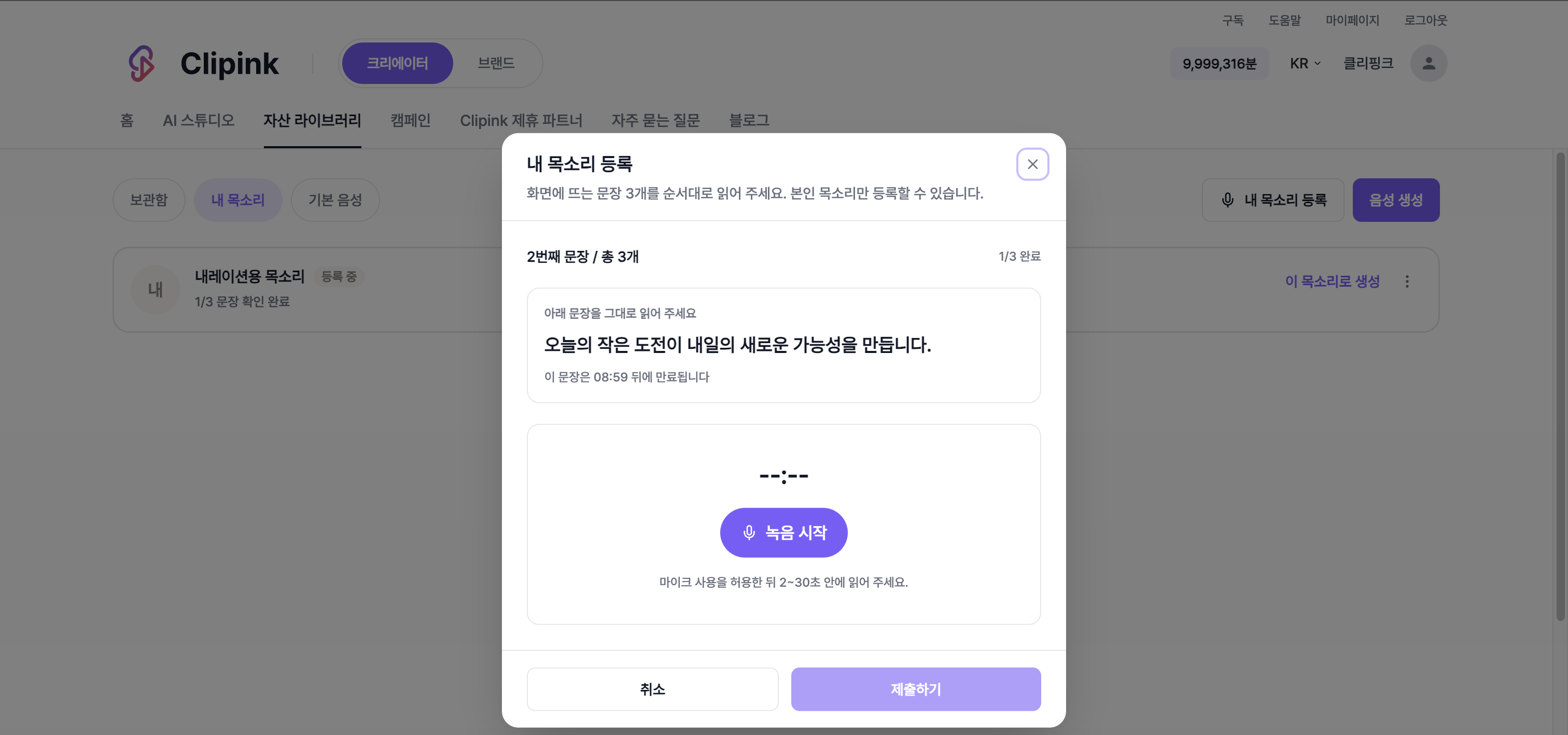
- 1Register my voiceTap 'Register my voice', give it a name, and sentences appear one at a time. Read all three in order.
- 2Between 2 and 30 secondsStart reading when the 3-second countdown ends. Each sentence should take between 2 and 30 seconds.
- 3If a take doesn't passIf the reading doesn't match or comes out too fast, just re-record that one sentence. If the sentence has expired, you can get a new one.
- 4Once it's registeredPass all three and the status turns to 'Ready', so you can use it right away. You may only register your own voice, and you'll be asked to consent before you start.
Everything you make lands in the Library
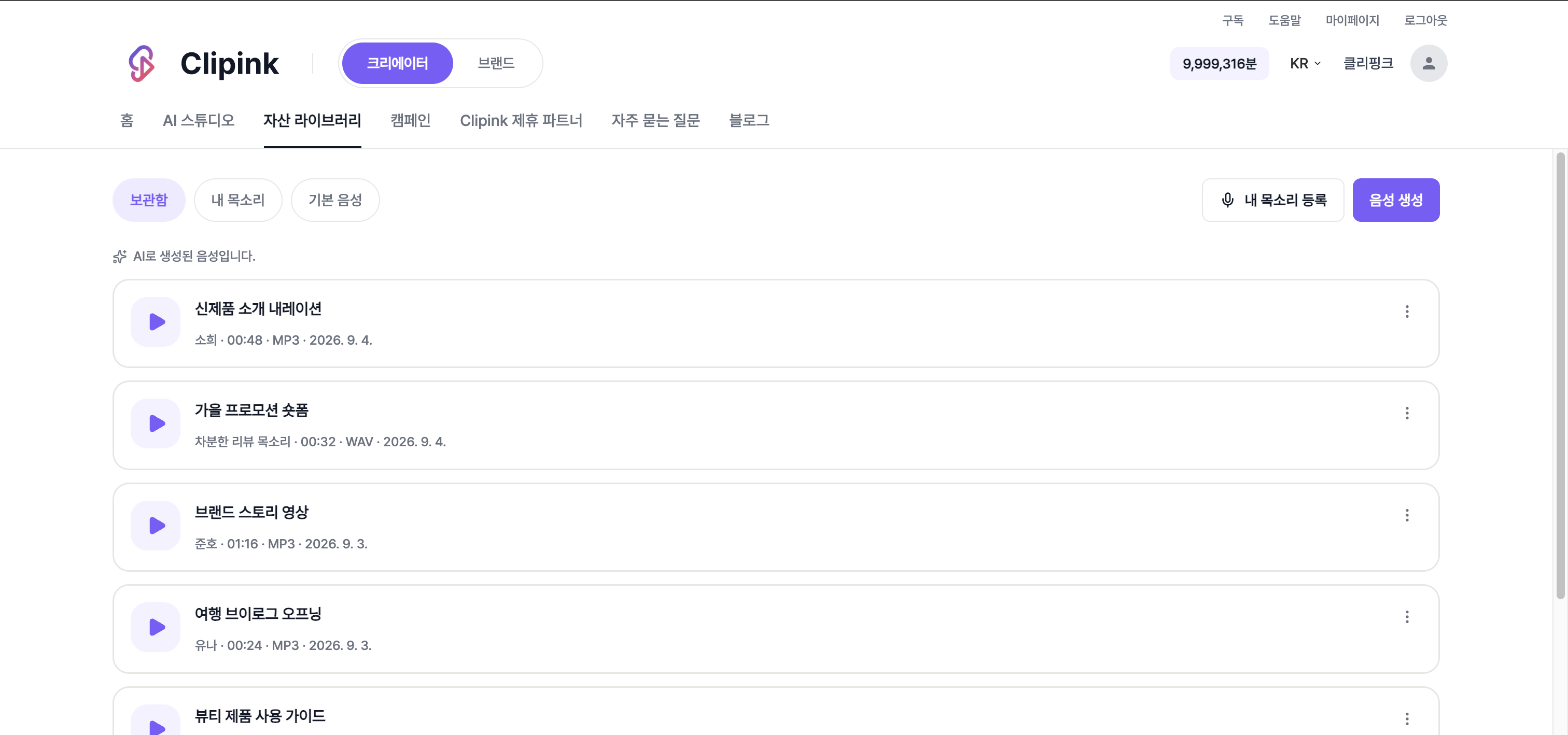
- 1You can close the dialogOnce you send the request, the rest runs on its own. Results collect in the 'Library' tab.
- 2Listen, then downloadPlay it right from the card and download it if you like it. You can rename it, too.
- 3Tidy upDelete the takes you don't need. Deleting also removes the audio file.