

CampaignsGuide
From applying to getting paid: the whole campaign flow
Campaigns let you turn a brand's material into a clip, post it, and earn a reward. Here is the whole path, from finding a campaign to getting paid, screen by screen.
Start from the Campaign tab
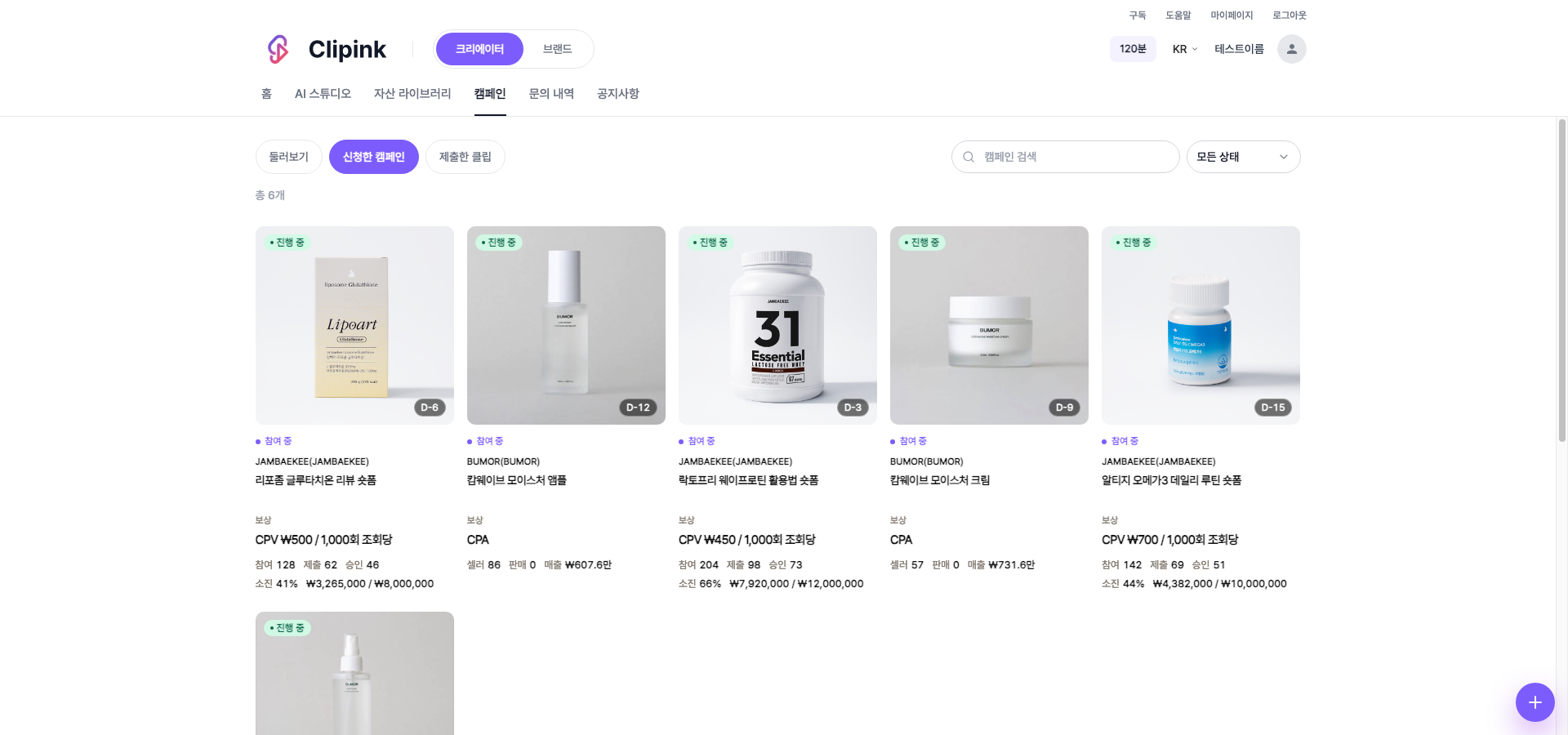
- 1Status and time leftYou can only apply while a campaign is active. The D-6 badge on the thumbnail is the days left until it closes.
- 2Reward typeCPV pays per view, CPA pays per sale. The two work very differently, so check this first.
- 3Activity and budget usedEach card shows how many creators joined, how many clips were submitted and approved, and how much of the budget is used. The higher that share, the less budget is left.
Check the conditions before you apply
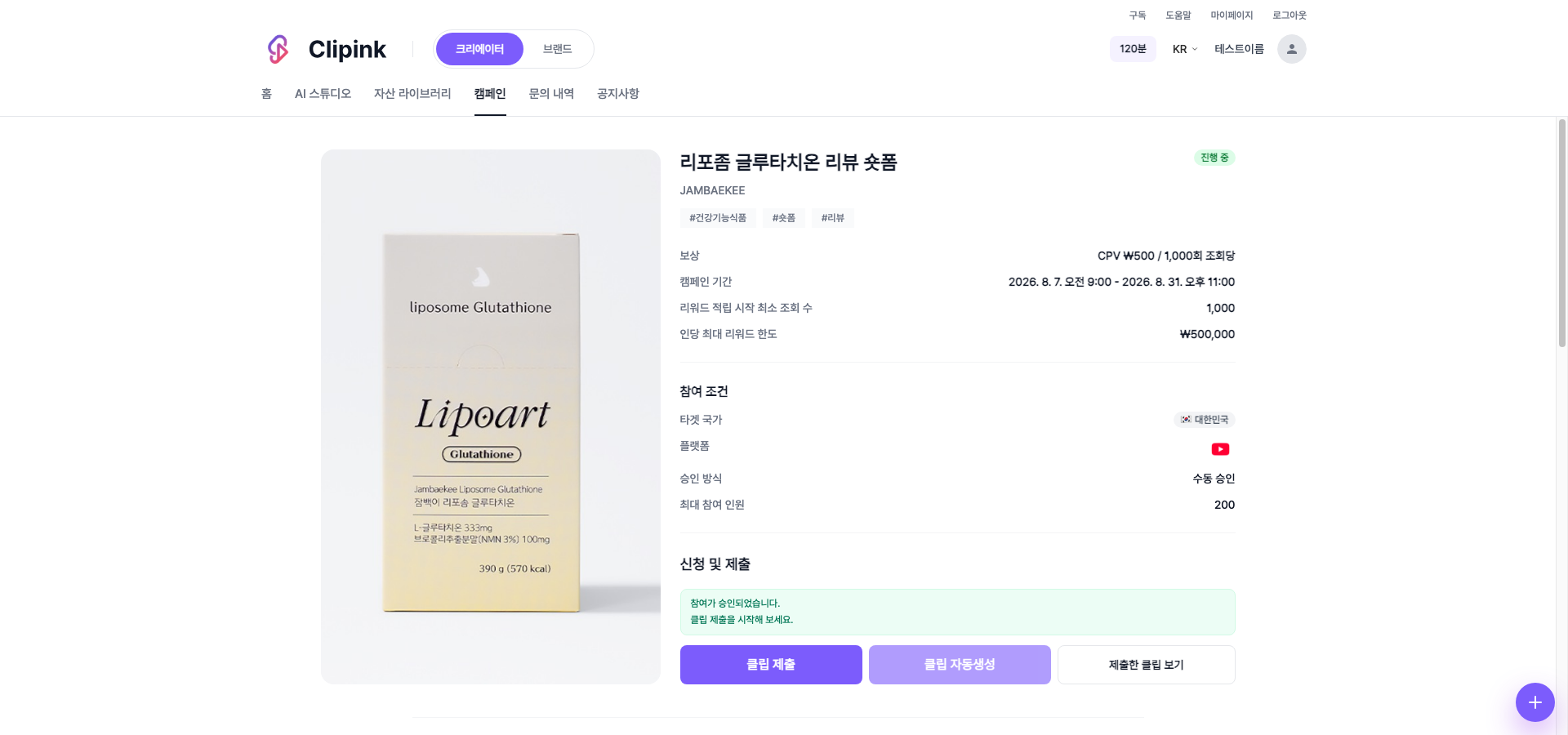
- 1Minimum views to start earningRewards only start accruing once your clip passes this view count.
- 2Reward cap per creatorThe most one creator can earn from this campaign. Some campaigns have no cap.
- 3Platform and approvalYour clip has to be posted on the platform the campaign specifies. Auto approval confirms you instantly; manual approval waits for the brand's review.
- 4AttachmentsThe brand's material and source video become downloadable only after your participation is approved.
Apply, then wait for approval
- 1Agree to the terms onceThe first time you join a campaign, the participation terms appear. You will not be asked again for later campaigns.
- 2Pick the channel you will post fromIn the apply dialog you choose a platform and a connected account. Only the platform the campaign specifies is selectable.
- 3No connected account yet?Connect a channel in Settings > Social first, then apply. The channel you pick here is the one your clip has to be posted from.
- 4Watch the statusThe apply and submit card tells you whether your application is received or approved. The submit button stays locked until approval.
Once approved, submit your clip
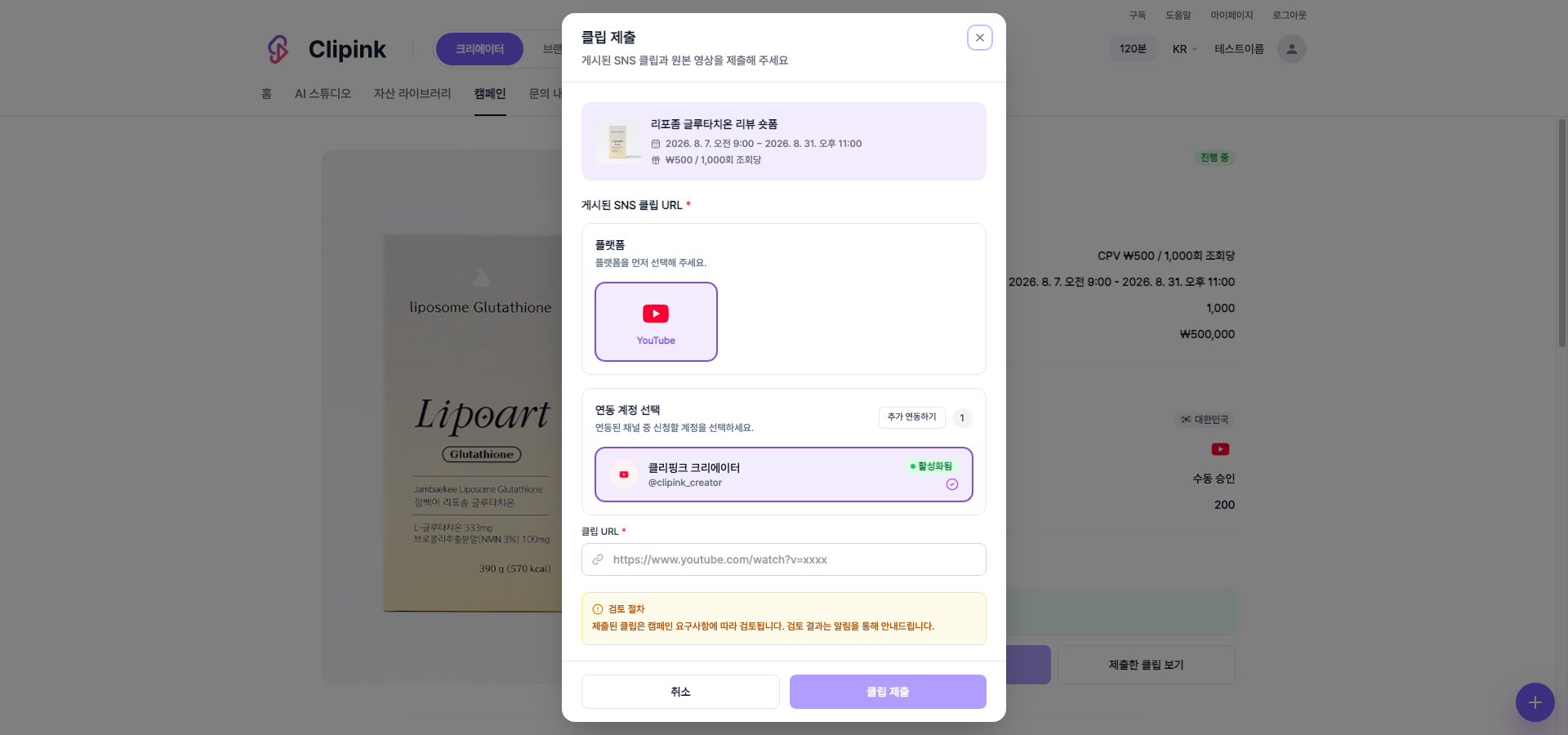
- 1Post first, then submitThe dialog needs the URL of your published post. Paste it and the video details and view count load automatically.
- 2One submission per videoA URL you already submitted, or the same video on the same platform, cannot be submitted twice.
- 3Or auto-create the clipYou can turn the campaign's source video into an AI Studio project right away. Just pick a length and a template.
How review and settlement work
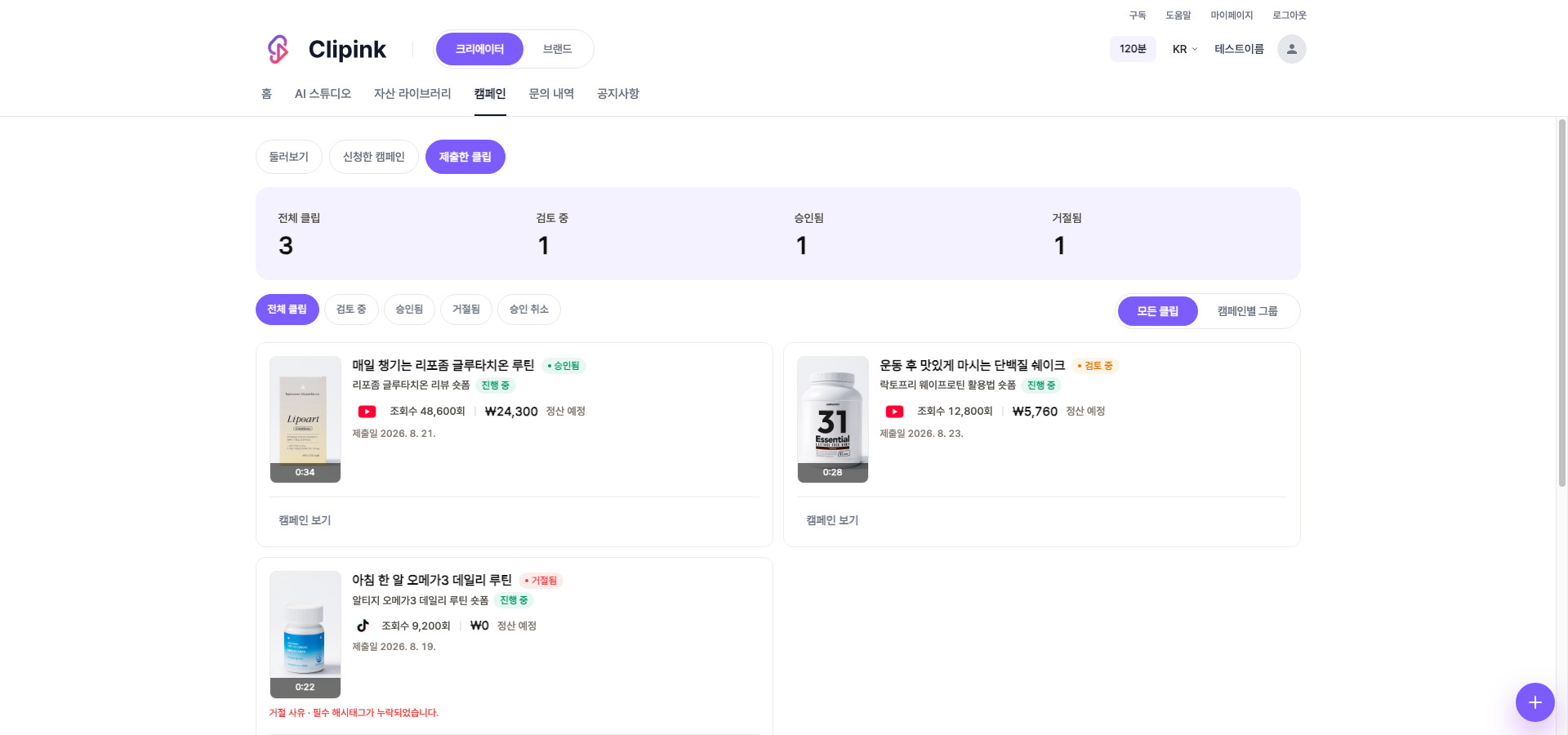
- 1Review windowClips are reviewed within 5 to 7 business days of submission. Check the result in the Submitted clips tab.
- 2How the reward is countedRewards are based on verified views within 30 days of posting. Views are counted automatically from your connected channel, then verified.
- 3When you get paidSettlement happens one month after the campaign ends.
- 4If a clip is rejectedThe reason appears right under the clip. You can file a dispute during the settlement period.
CPA campaigns work differently
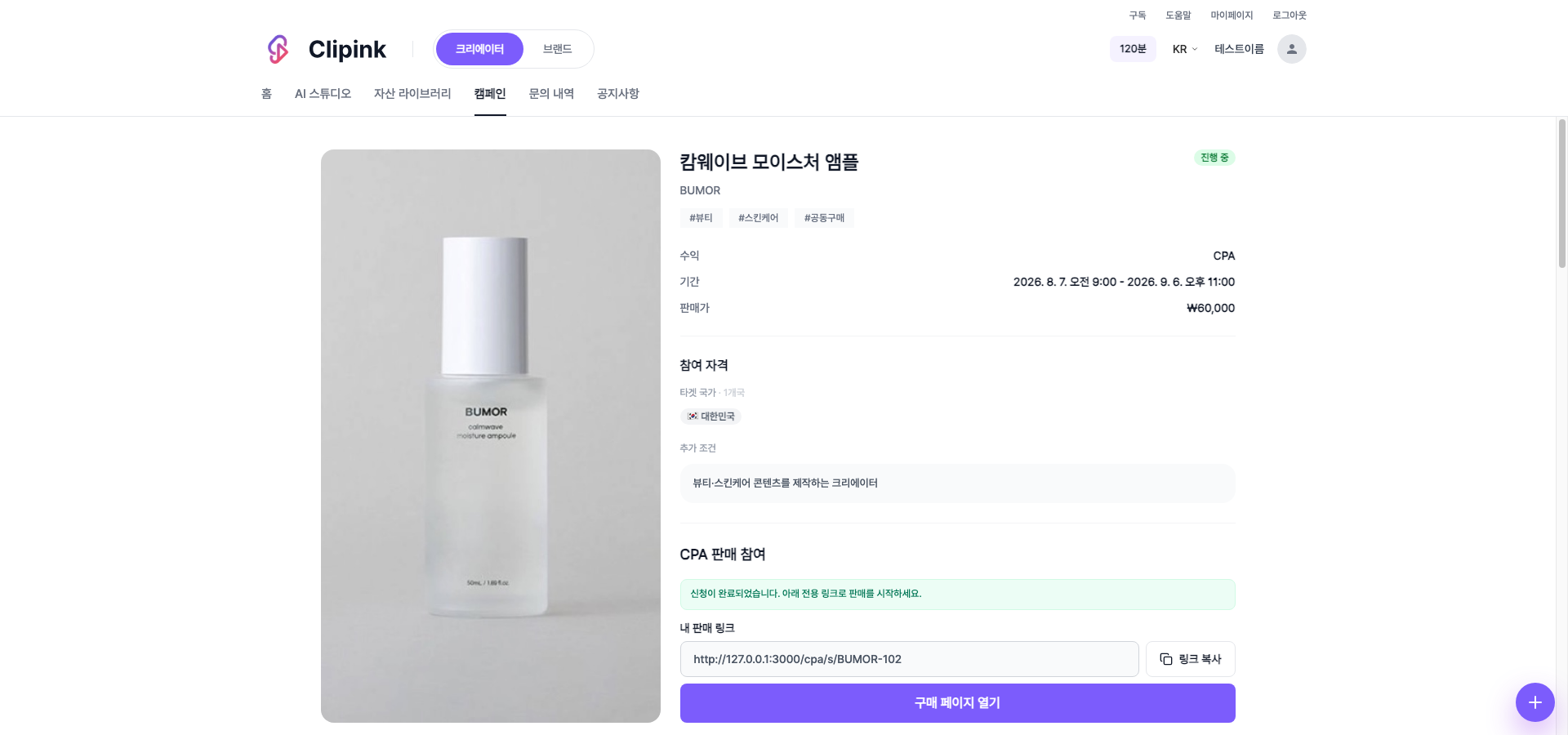
- 1You earn on every saleYou earn from every sale made through your link. Copy it into your content, or open the purchase page to see what buyers see.
- 2The link arrives with approvalAuto-approval issues it right away; with manual approval it appears once the brand approves you.