

AI StudioGuide
AI Studio: turn one long video into short clips
AI Studio finds the moments worth keeping in a long video and turns them into short clips. Upload a video, choose a length and a template, and AI handles the rest.
Start with a video
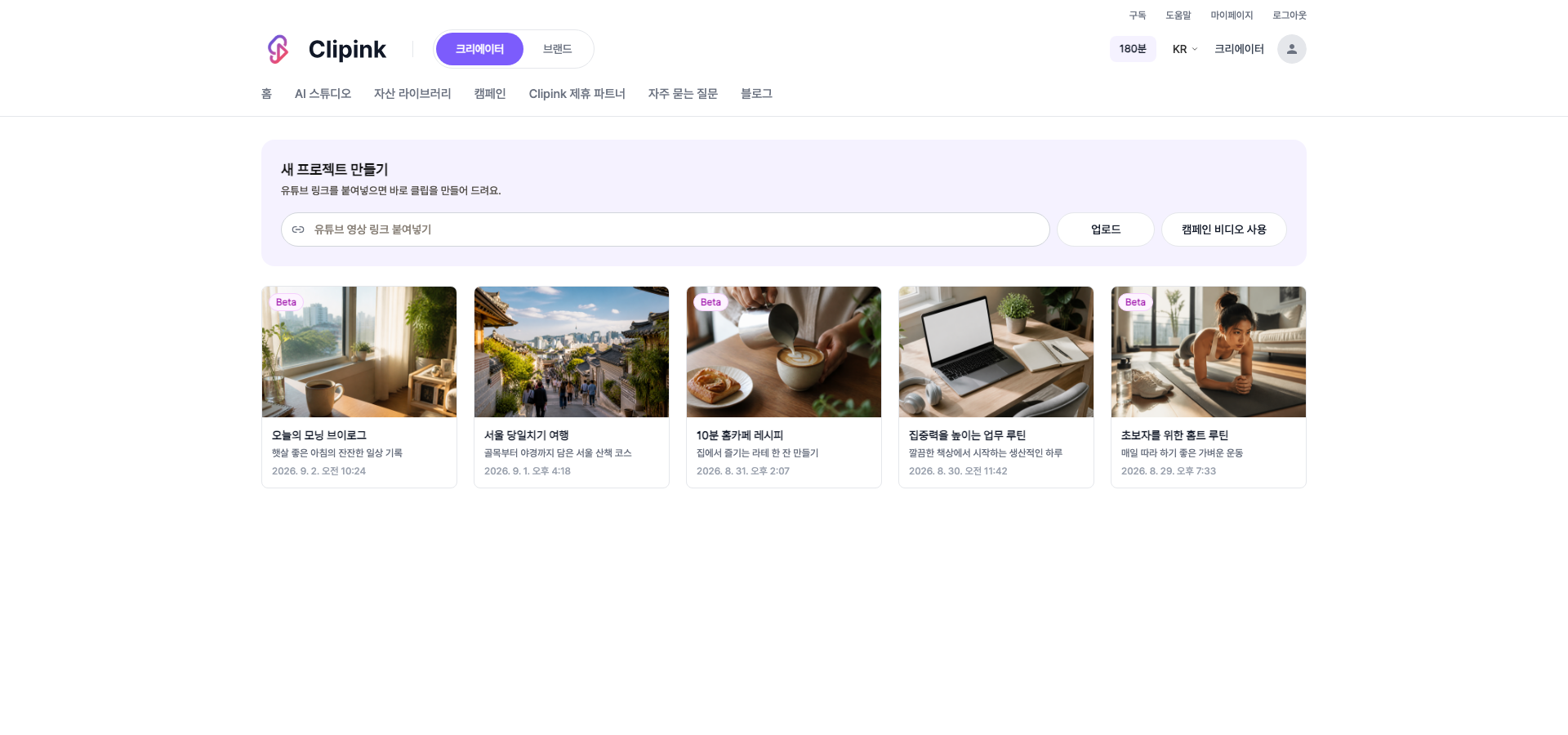
- 1Paste a YouTube linkPaste the link into the new project box; we check it and move you straight to the next step.
- 2Upload a fileMP4, AVI, MOV and MKV files up to 2GB are accepted.
- 3Use a campaign videoYou can pull in the source video from a campaign you have been approved for.
- 4Length requirementThe source video has to run between 3 and 60 minutes. Anything shorter or longer will not go through.
Check your credits, then continue
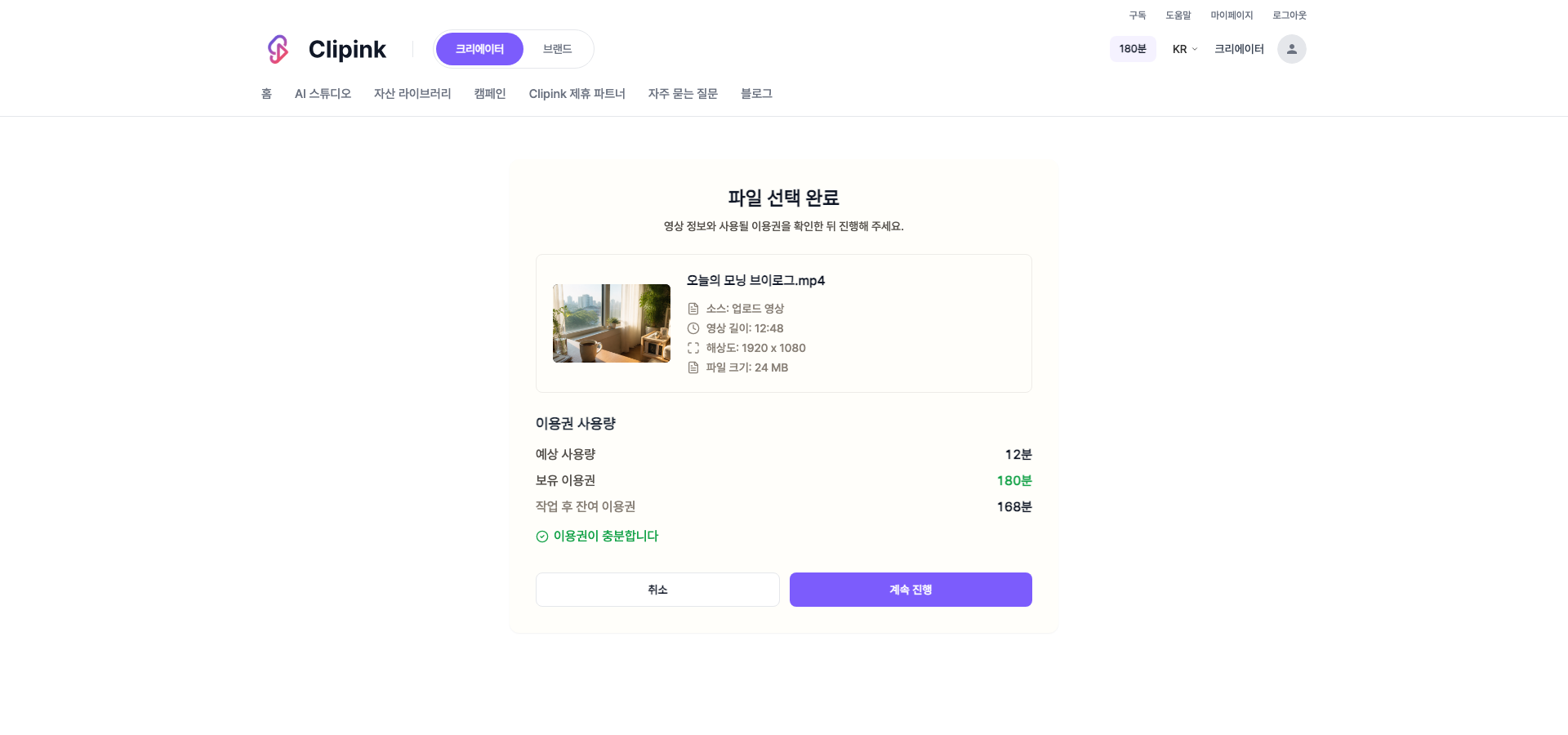
- 1See the estimate firstOnce the file is picked, we show how many credits this video will use and how many you have. Credits are counted in minutes.
- 2And what is left afterThe balance you would have after the job is shown too, so you can plan the next one.
- 3Top up right thereIf you are short, we tell you how much more you need and let you buy credits on the spot.
Choose a length and a template
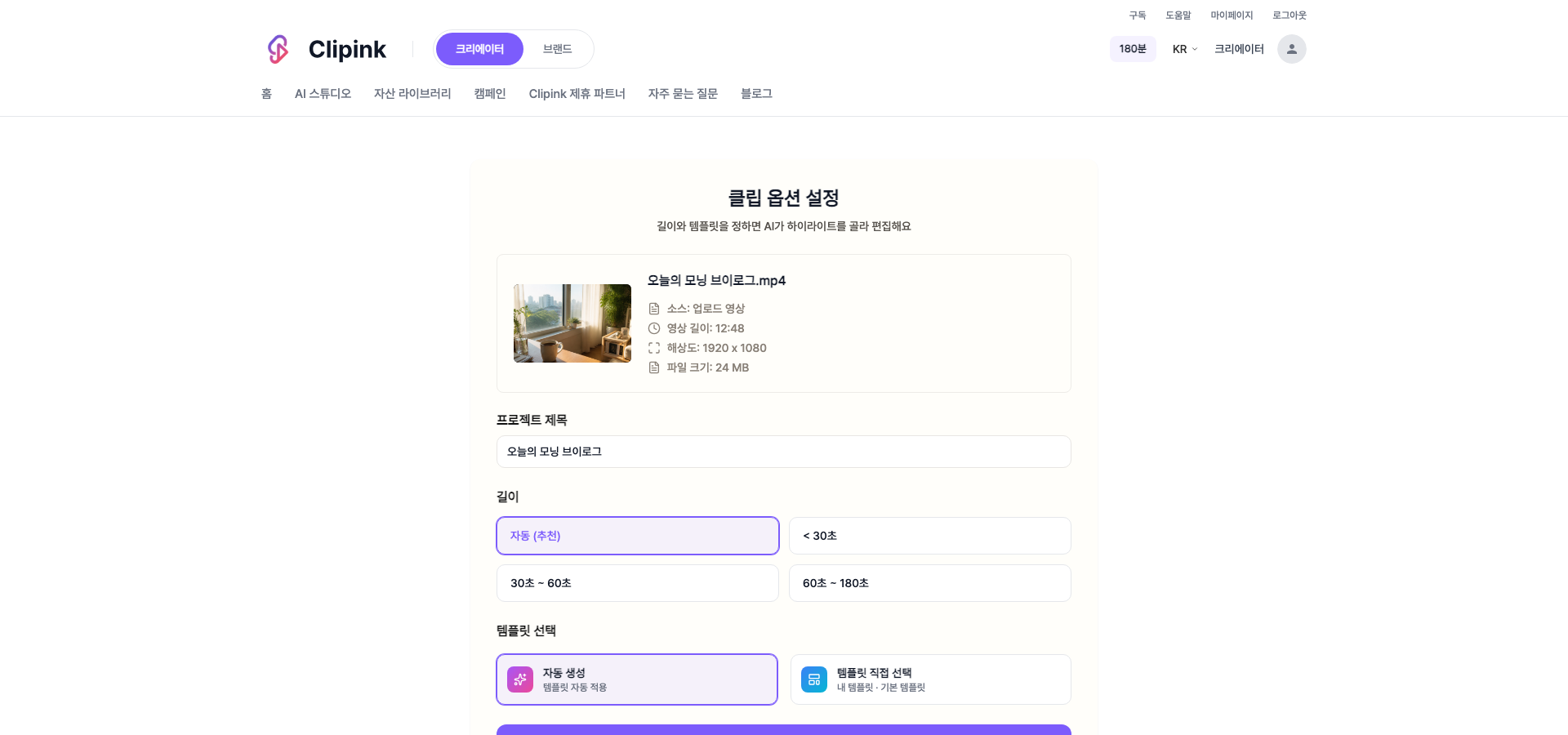
- 1LengthPick Auto (recommended), under 30s, 30-60s, or 60-180s. Auto sets the length to fit the video.
- 2Template, applied for youChoose 'Auto-create' and the default template is applied.
- 3Or pick it yourself'Choose a template' lets you pick from your own templates and the default ones, and edit the text while watching the preview.
- 4For campaign clipsIf the campaign specifies a template, that template is applied automatically.
Pick an AI model and generation starts
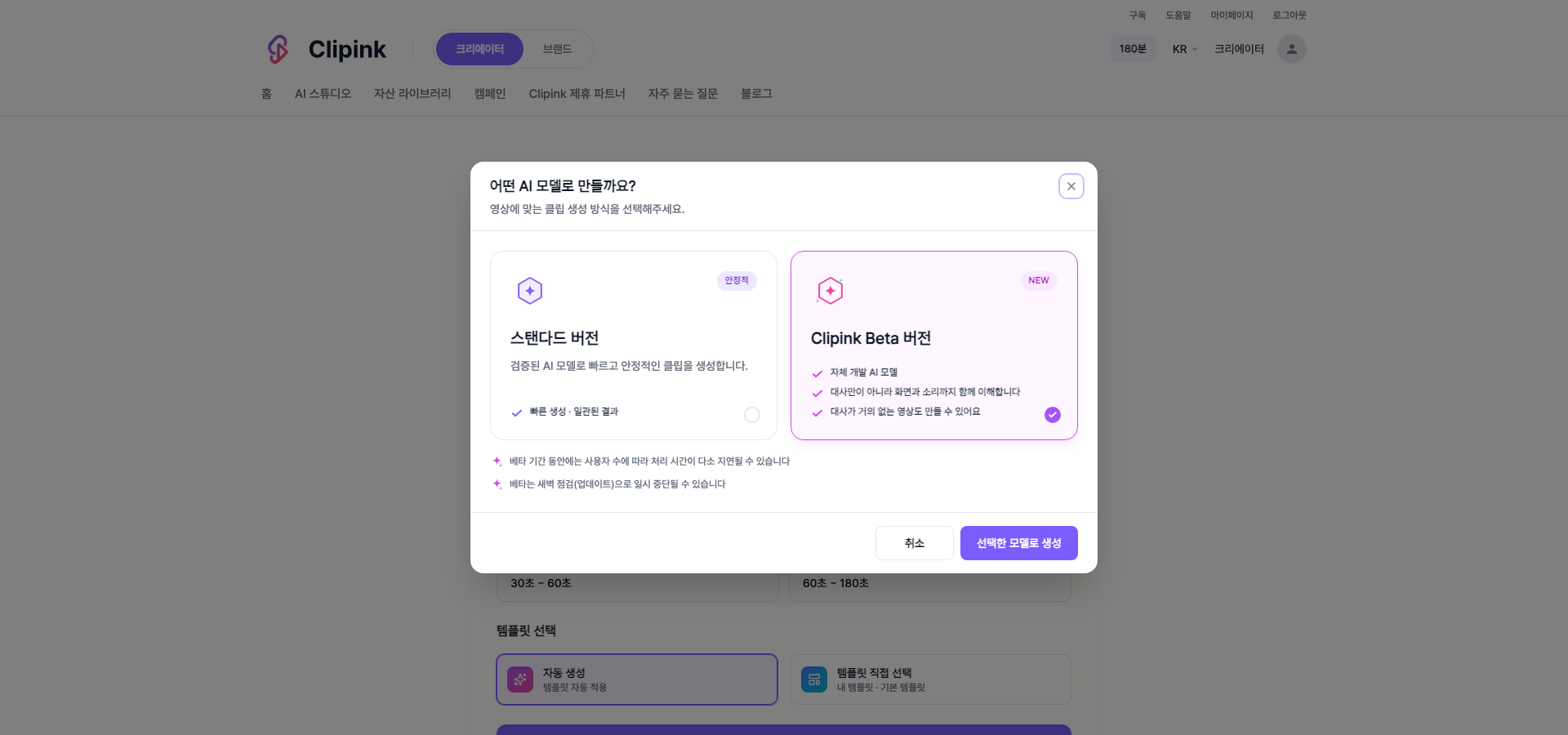
- 1StandardA proven model that produces fast, consistent clips. Start here if it is your first time.
- 2Clipink BetaOur own model reads more than the dialogue — it takes in the visuals and the audio too, so it can work with videos that have barely any speech.
- 3Beta prompt (optional)Describe the style you want or what to emphasize. Leave it empty and the AI analyses the video and decides for you.
- 4What to expect from BetaDuring the beta, processing can slow down when many people are using it, and nightly maintenance may pause it briefly.
Polish the clips you got
- 1Browse the generated clipsOpen the project and the generated clips are listed. Play through them and keep the ones you want.
- 2EditTitles, subtitles, images and shapes are all editable. Swapping the template mid-edit keeps your work intact.
- 3Find your edits laterSaved clips live in Saved clips under the asset library, ready to reopen.
Download it, or post it straight away
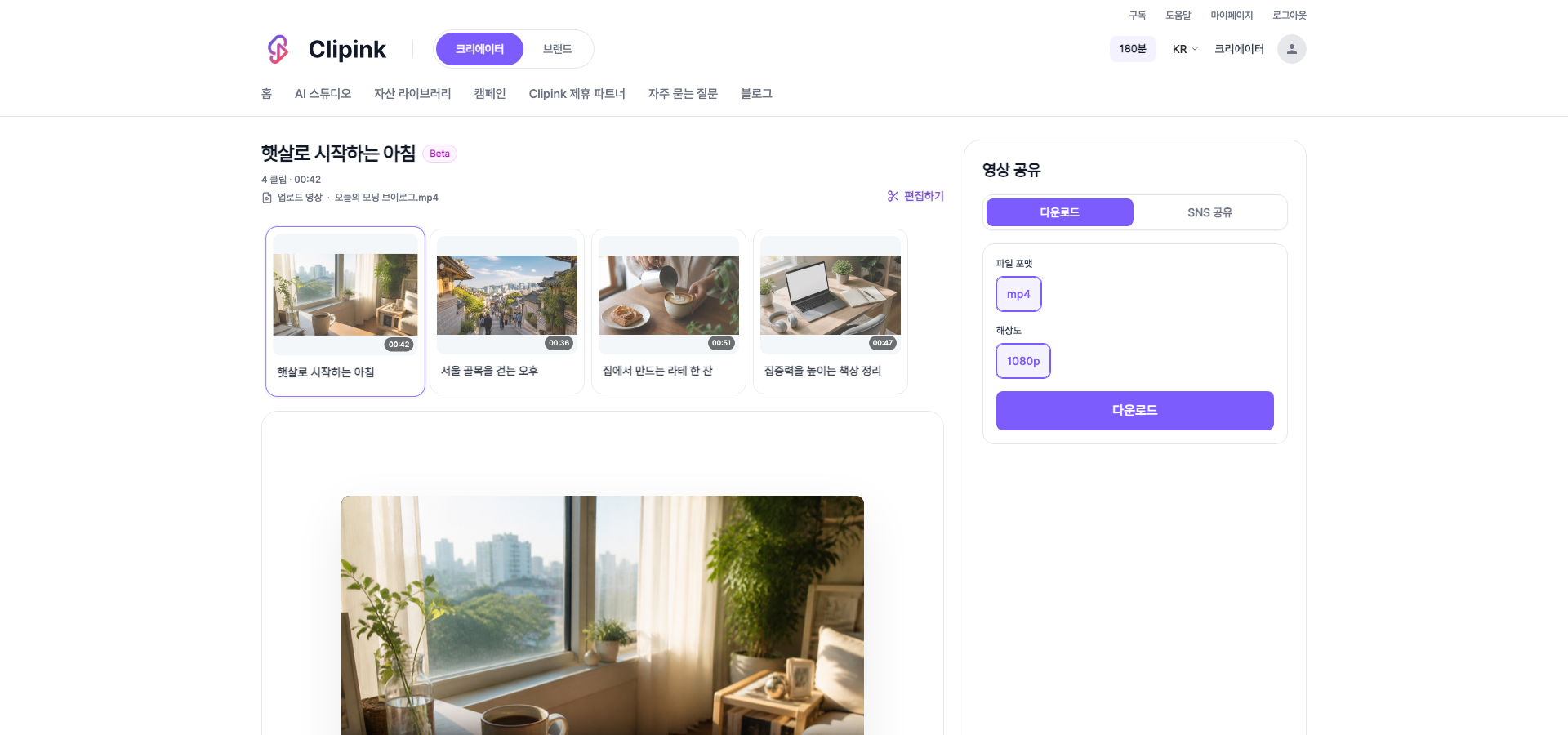
- 1DownloadAvailable as MP4 at 1080p.
- 2Share to socialPost straight to your connected YouTube, TikTok or Instagram channel from here.
- 3Write the post firstFill in the title, description and hashtags and they go up with the video.
- 4Visibility and schedulingChoose public, private, or scheduled. Scheduling lets you set the exact date and time.