

AI StudioUpdate
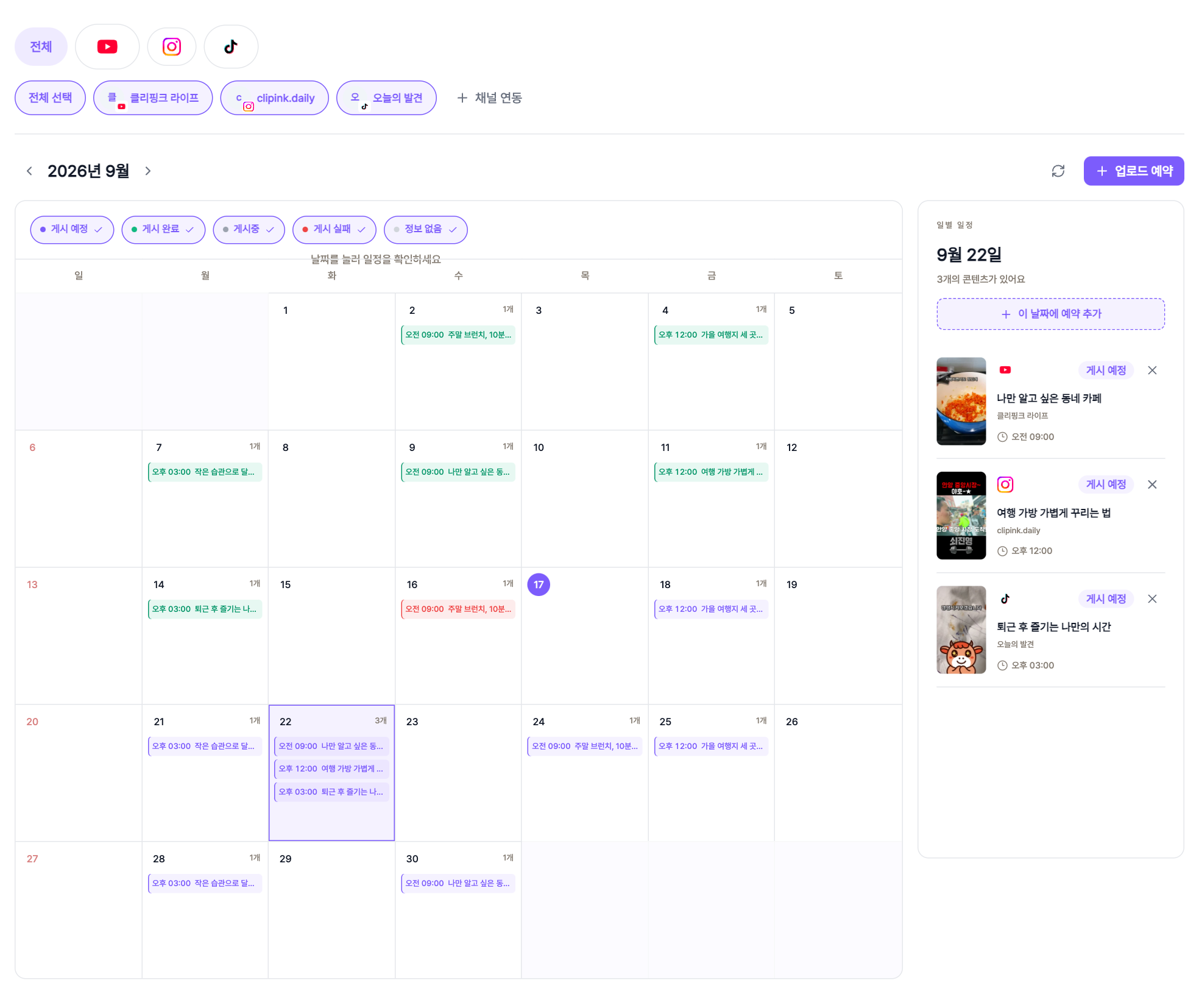
See a month of uploads at a glance
No more opening each channel to check what went out this week and what's queued for next. It's all on one screen under 'Upload calendar' in the left menu.
How it works
- 1Filter by channelYour connected accounts show up as chips. Narrow by platform tab or pick several accounts to see only their posts.
- 2Status at a glanceScheduled, published, publishing and failed each get a colour. Tap the status chips above the calendar to keep only what you want to see.
- 3Tap a day for its listTap anywhere in a day cell and that day's content appears on the right in time order. Tap an item to open the video on the platform.
- 4Cancel a scheduleTap the X next to a scheduled item to cancel it. The private video already uploaded to the platform is removed as well.
- 5Add a schedule on that dayWith a day selected, tap 'Add a schedule on this day' and the share panel opens with scheduling already on for that date.