
AI StudioUpdate
Pick several saved clips and share them in one go
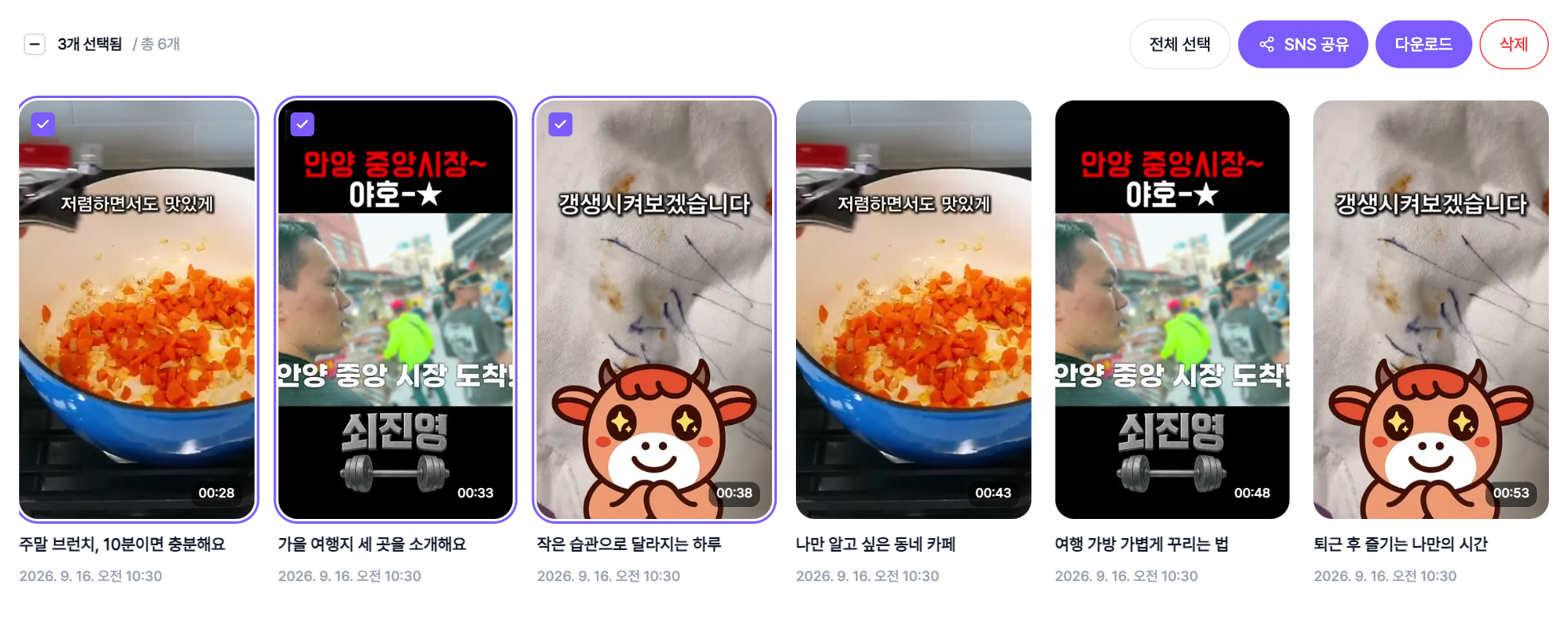
Made a batch of clips and opened the share panel for each one? Not anymore. Select what you want to post in Saved clips, tap 'Share selected', and they go up one after another.
How it works
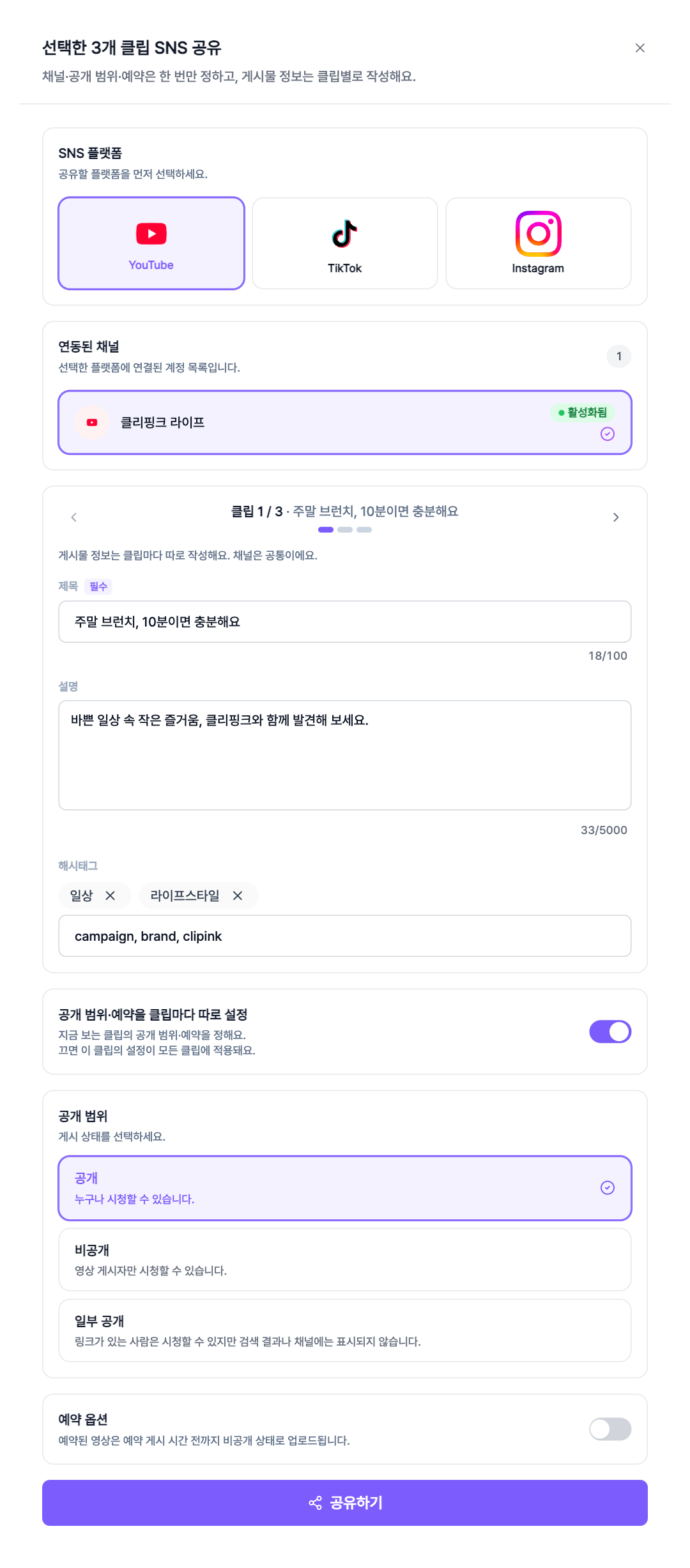
- 1Pick, then share onceSelect several clips in Saved clips or a project's clip list and tap 'Share selected'. Choose a channel and the clips go up one after another.
- 2Post details per clipTitle, description and hashtags are written per clip. Step through with the arrows at the top; clips you haven't filled in yet show a red dot.
- 3Visibility and schedule: shared or per clipBy default every clip gets the same visibility and scheduled time. Turn on 'Set per clip' to decide for each one; turning it off applies the clip you're viewing to all of them.
- 4See the results on the calendarShared clips show up in Shared clips and on the Upload calendar right away. If some fail, we tell you how many.